Some of the links in this post are affiliate links, which means I may earn a small commission if you choose to make a purchase at no extra cost to you. As an Amazon Associate, I earn from qualifying purchases. Read my full Ethics & Affiliate Relationship Disclaimer.
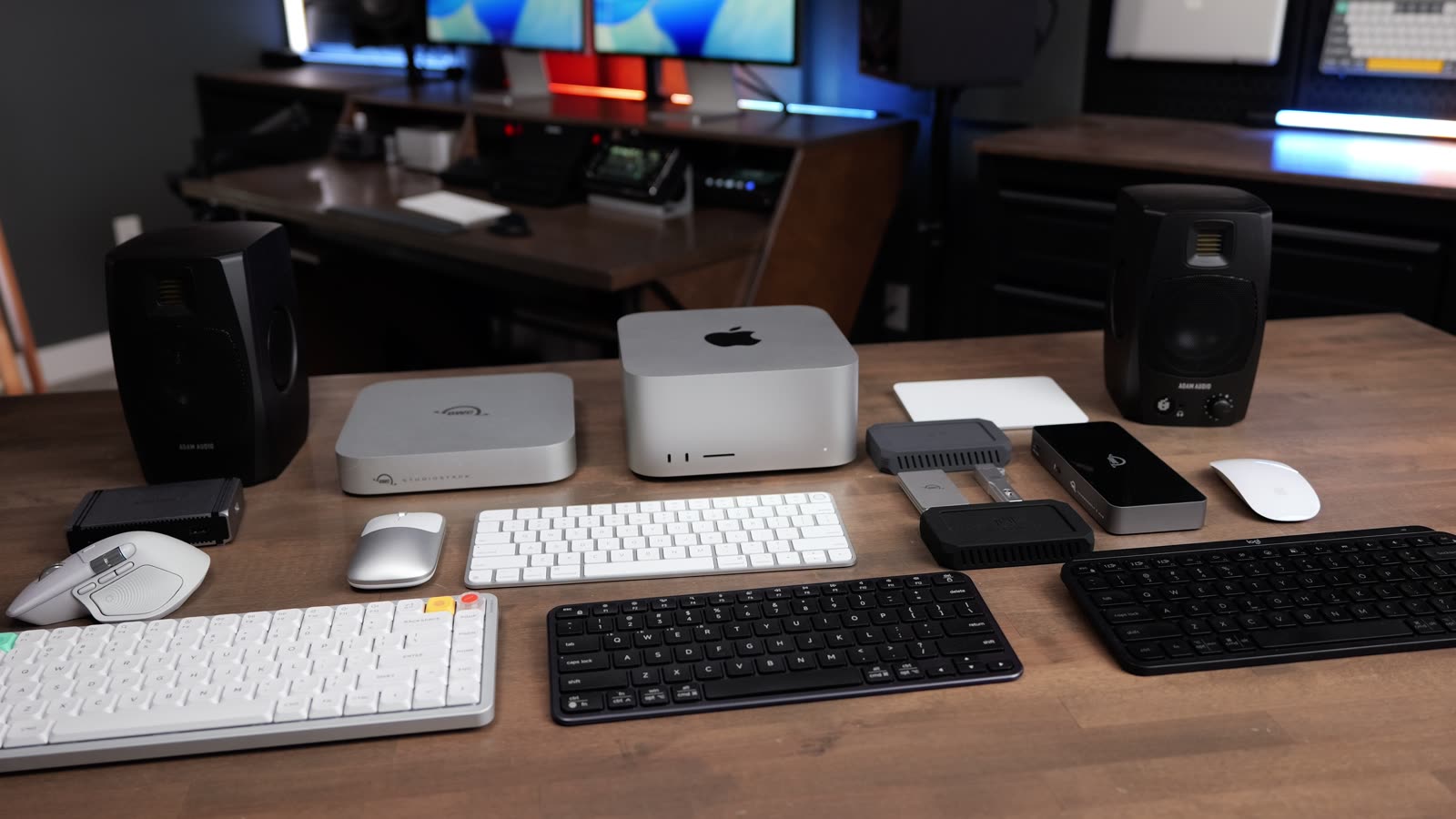
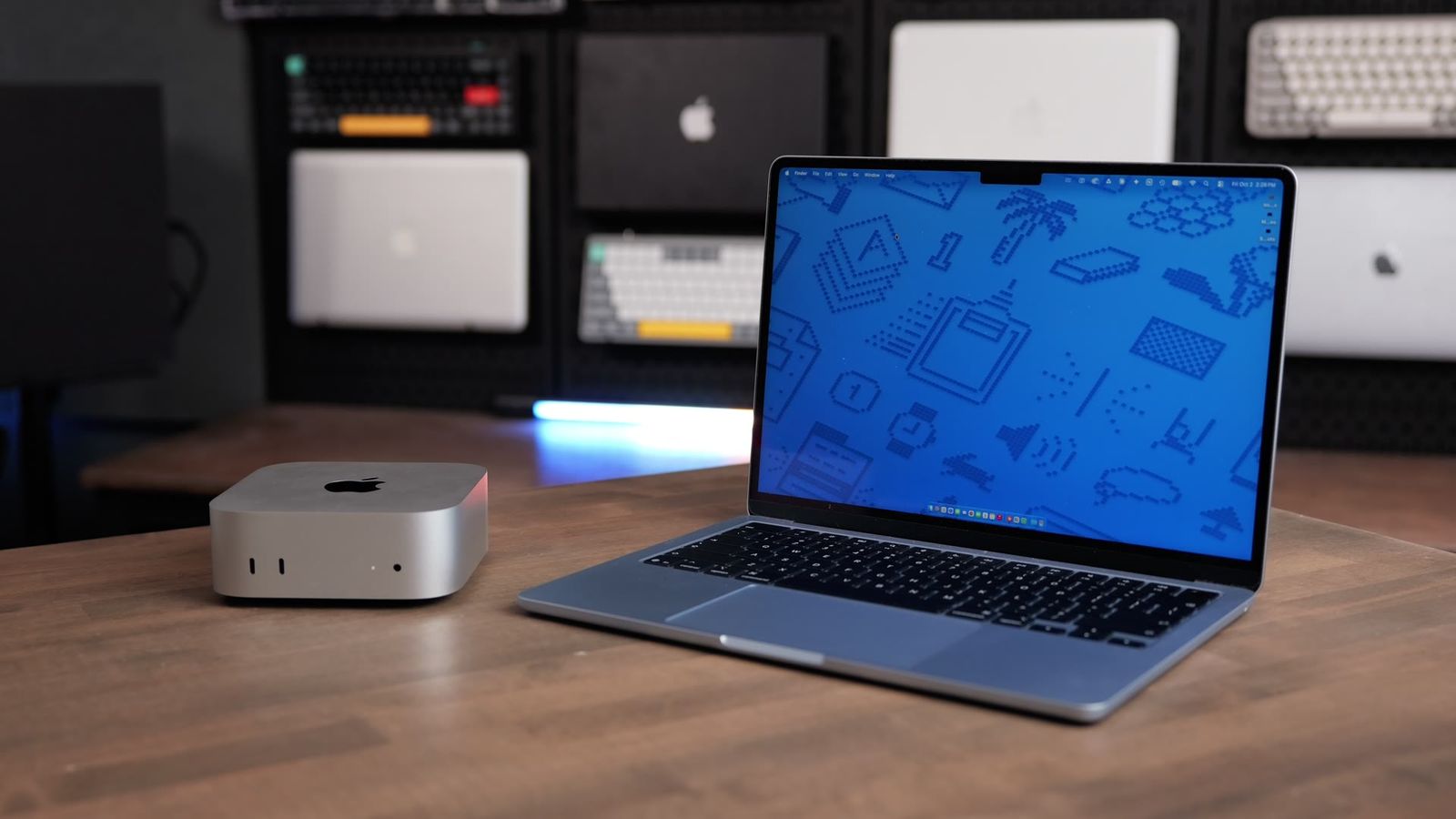
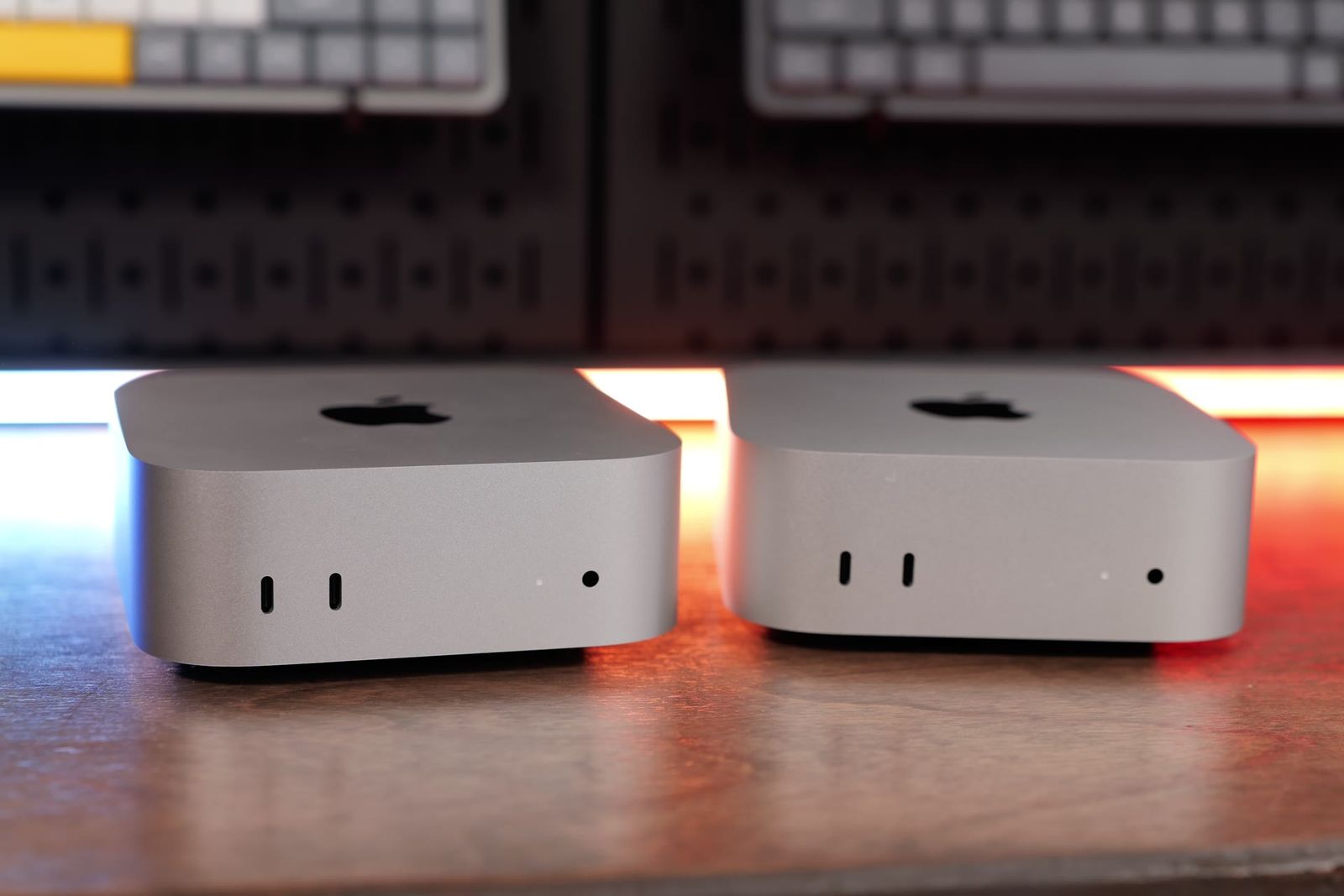
When you open a new Mac Studio box, all you get is the Mac and the power cord. No keyboard, no mouse and no display. These are the accessories I’d pick for a new Mac Studio setup, from the stuff you need on day one to the upgrades that make it feel finished.
Some of these products were sent to me by brands, and I’ve marked those. Where I’ve done a full review, I link to it so you can get more detail before you buy.

| Category | My pick | Also great |
|---|---|---|
| Mouse | Logitech MX Master 4 | Satechi Slim EX Mouse (budget) |
| Keyboard | Apple Magic Keyboard with Touch ID | Satechi EX1 (budget) |
| Display | Apple Studio Display 2 | LG 27-inch 4K (budget) |
| Webcam and mic | iPhone on the Stouchi MagSafe mount | Elgato Facecam and Elgato Wave |
| Hub | CalDigit Element 5 | OWC Thunderbolt 5 Hub (cheaper) |
| Hub and storage | OWC Studio Stack | |
| External SSD | Oyen U35 Bolt | Oyen U34 Bolt |
| Speakers | ADAM Audio D3V | Edifier MR3 (budget) |
| Desk lighting | BenQ ScreenBar Halo 2 (one monitor) | BenQ ScreenBar Max (two monitors) |
| UPS | CyberPower SL950U |
Mice and trackpads

You can’t even set up a Mac Studio without a mouse, and I’ve got four picks.
Logitech MX Master 4
My daily driver is the Logitech MX Master 4. I love the elevated design, and it’s super comfortable. You get side scrolling, customizable buttons and a button on the side for macOS gestures, and the main scroll wheel works great. I use this all day long with no wrist pain.
My full take: Logitech MX Master 4 review
Apple Magic Mouse

The Magic Mouse gets made fun of a lot because the charging port is on the bottom, and it sits at a shallow angle. It’s not the most comfortable mouse, but the smooth top is great for scrolling and gestures, and it works really well with macOS. If you’ve never had one, I’d recommend trying it.
My full take: Magic Mouse vs MX Master 4
Apple Magic Trackpad

The Magic Trackpad is for you if you’re used to a laptop, or you just like scrolling, swiping and using gestures. It’s bigger than the other options, but you don’t move it around your desk. It has haptic feedback and it’s very comfortable. Some people even use it next to a mouse: browse with the trackpad, then switch to something like the MX Master 4 for work.
My full take: MX Master 4 vs Magic Trackpad
Satechi Slim EX Mouse

If you need a budget option, the Satechi EX Mouse is great. It charges from the top, and you can pair it to multiple devices. If all you care about is saving a little money, it’s a solid pick.
Keyboards

Apple Magic Keyboard with Touch ID
The one I use every day is the Apple Magic Keyboard with Touch ID. The Touch ID button unlocks your Mac, fills in saved passwords and pays with Apple Pay. It also has the Globe key, which has tons of macOS shortcuts the other keyboards don’t support, and the layout matches the iPad keyboards and MacBooks, so it feels familiar.
The biggest drawback is the typing angle. It can feel shallow, and there isn’t a ton of key travel. It works fine once you get used to it.
My full take: Magic Keyboard with Touch ID: compact vs full-size
Satechi EX1

If you want something cheaper that looks like the Magic Keyboard, the Satechi EX1 is great. It uses Bluetooth, or you can pair it with the USB receiver on the back, and it pairs to multiple devices. You get the same Mac shortcuts, but there’s no Touch ID, and the Globe key doesn’t work with the macOS shortcuts. It also feels a little flimsier than the Magic Keyboard. It still works just fine.
Logitech MX Keys Mini

For more durability, I like the Logitech MX Keys Mini. It has backlighting, which the Apple and Satechi keyboards don’t. You can pair it to multiple devices and switch with F1, F2 or F3, change what the other function keys do in Logitech’s software, and still connect it with USB. The keys have little divots for your fingers, and it’s a bit more comfortable to type on than the other two. I don’t use it every day only because it’s missing the Globe key.
NuPhy Air75 V3

If you want a mechanical keyboard with a more tactile feel, the NuPhy Air75 V3 is a great option. You can get it with silent keys, and the Blush switches are amazing. Mine has the browns.
My full take: NuPhy Node 75 vs Air75 V3
All four of these keyboards come in versions with a number pad. I don’t like a number pad, because a compact keyboard makes it easier to go from the keyboard to the mouse.
Displays

Apple Studio Display 2
If you can swing it, the Apple Studio Display 2 is hard to beat. You get 5K, a great built-in webcam and speakers that sound surprisingly good, so you don’t have to buy a webcam and speakers later. It plugs into your Mac with a single cable. You can also get the original Studio Display, and you can sometimes find open-box ones to save money.
My full take: Apple Studio Display 2 review
ASUS ProArt 32-inch 6K

If you want a 32-inch monitor, I liked the ASUS ProArt 32-inch 6K display. The color on it is very good and very accurate. It just doesn’t look as clean and minimal as the Apple display.
My full take: ASUS ProArt PA32QCV review
5K and 4K picks for less
If you’re on a budget and want sharp macOS text on a 27-inch monitor, get a 5K display. I recommend BenQ and ASUS models here.
BenQ PD2730S 5K

ASUS ProArt PA27JCV 5K

To save more and still get great color accuracy, ASUS has a 27-inch 4K display, and BenQ has the MA270U, another excellent 4K display. Neither is quite as sharp for macOS as a 5K monitor.
ASUS ProArt PA279CRV 4K

BenQ MA270U 4K

If you want to save as much as possible, I’d still get a 4K display over any 1080p display. LG makes tons of 4K monitors, and I’ve tried a bunch of them. Most go on sale for $230 to $280.
LG 27-inch 4K

Webcam and mic
Stouchi MagSafe Mount

If you didn’t get a Studio Display, you’ll still need a webcam and a mic. Stouchi has a nice MagSafe iPhone mount that sits on top of your display, so you can use Continuity Camera for both the webcam and the mic. It works and sounds surprisingly good.

I also like the Elgato Facecam and the Elgato Wave USB microphones. Both are plug and play over USB, and you can use Elgato’s software if you want to change the sound and video settings even more.
Elgato Facecam

Elgato Wave:3

Thunderbolt hubs

The Mac Studio has tons of ports, but they still fill up fast. Plug in a display, a couple of SSDs and your audio gear, and all of a sudden you’re out of Thunderbolt ports on the back. A Thunderbolt hub turns one port into three or four, and any drives you plug into it still run at full speed. A cheap USB hub can’t do that. A hub also puts ports on your desk where you can see them, so you don’t have to reach behind the Mac Studio every time you plug in a drive. Both of these hubs need external power.
CalDigit Element 5
The CalDigit Element 5 is an awesome compact hub. The port on the side plugs into the Mac Studio, and you get three more Thunderbolt ports and a USB-A port on the back. On the front, you get two more USB ports and two USB-A ports. It works really well for expanding the Mac Studio without taking up much space on top of it.
My full take: CalDigit Element 5 vs TS5 vs TS5 Plus
OWC Thunderbolt 5 Hub

A cheaper option is the OWC Thunderbolt 5 Hub. You plug in a single cable and get two Thunderbolt 5 ports on the back, plus a Thunderbolt 5 port and a USB 3.2 port on the front. I like having a port on the front. It’s the simplest and most affordable way to get more Thunderbolt ports on the Mac Studio.
OWC Studio Stack

The OWC Studio Stack is a hard drive enclosure, an SSD enclosure and a hub all in one. One cable goes to the back of your Mac Studio, and you get three more Thunderbolt ports and a USB-A port, plus two USB-A ports on the side. You unscrew the bottom to get inside, and you can buy it with an SSD and hard drive already installed or put your own in. It needs external power too.
I use mine for my Google Drive folder, and I use the hard drive in it for offloads. It takes up no extra desk space because the Mac Studio sits right on top of it. It’s about $380, so it’s a little pricier, but you’re getting a hub and an SSD enclosure in one device. If you get one accessory from this list, this is the one I’d recommend with a Mac Studio, because it adds both storage and ports.
If you’re putting your own SSD in it, my favorite NVMe drives are in my external SSD buying guide.
My full take: OWC Studio Stack review
External SSDs
If you don’t want something like the Studio Stack, here are the SSDs I recommend.
OWC Envoy and Envoy Pro mini
If all you need is to offload files in a convenient package, the OWC Envoy and Envoy Pro mini are great. They’re very compact. The Envoy Pro mini is a thumb drive style SSD, so you can plug it straight into a front port on the Mac Studio and get about 800 to 900 MB/s read and write. The Envoy gets very similar speeds, but you use a cable with it.
My full take: OWC Envoy Pro Mini review


Oyen U35 Bolt and U34 Bolt

For the best SSDs to use with your Mac, the Oyen U35 Bolt and U34 Bolt are both great. The U35 is Thunderbolt 5, and it’s the fastest SSD I’ve ever tested. It also holds those fast speeds longer than any other drive I’ve tried. It’s the one I edit most of my projects on, and I can take it from my Mac Studio to my MacBook Air if I want to edit somewhere else.
The U34 Bolt is also great. It’s a little slower than the U35, but you can still edit any video project off of it.
My full take: Oyen U35 Bolt+ review
My full take: Oyen U34 Bolt long-term review

OWC 1M2

You can also get the OWC 1M2 40G or 80G and put your own NVMe drive in it. These aren’t quite as fast as the Oyen drives. If you’re thinking about buying one, I’d step up to the OWC Studio Stack instead. It gives you way more ports, and you can put two SSDs in it, or an SSD and a hard drive. I think the Studio Stack is a better investment than the 1M2.
Speakers

ADAM Audio D3V
Even if you get the Studio Display, the ADAM Audio D3Vs are my favorite compact speakers. You plug them into your Mac with USB, or you can plug them into an audio interface if you need to. There are switches on the back for changing the sound profile. They sound so good. They’re very clear for video production when you need to hear spoken word, and they sound amazing for music too. A jumper cable connects one speaker to the other, and you do have to plug them into wall power. They’re amazing for such a small size.
My full take: ADAM Audio D3V review

Edifier MR3
On the lower end, I also like the Edifier MR3s, which I bought myself. They aren’t quite as clear as the D3Vs, but they still sound nice and full, and they plug into the headphone jack on the Mac Studio.
Desk lighting
BenQ ScreenBar Halo 2

BenQ sent me the ScreenBar Halo 2, and I like it a lot if you’re using a single monitor. It sits right on top of the monitor and plugs into a USB port on the back. It does a great job lighting up the front of your desk, and it also lights up the wall behind your monitor, which makes it easier to stare at a screen all day long. It comes with a controller to adjust the brightness.
My full take: BenQ ScreenBar Halo 2 review
BenQ ScreenBar Max

If you’re working with two monitors or an ultrawide, BenQ just launched the ScreenBar Max, which clamps onto your desk instead. It’s what I’m using now, and I love it.
My full take: BenQ ScreenBar Max review
UPS

A UPS is something people overlook. I like the CyberPower SL950U because it’s compact, and I mounted mine to the back of my desk. A UPS keeps your Mac Studio running if the power goes out, so you can save everything and shut it down, and a small power interruption won’t cost you your progress on a project. It’s not just for the Mac. You can plug in your monitors and other gear too, so they’re surge protected and on battery backup while the power is out.
The bottom line
Those are all my top Mac Studio accessories. If you only get one thing from this list, make it the OWC Studio Stack, because it adds both storage and ports without taking up any more of your desk.
Still deciding which Mac to buy? I give free personalized Mac buying advice, and you can see every Mac I’ve tested.
Still deciding? Read what changed in the M5 Mac Studio or my M4 Max vs M5 Max Mac Studio tests.