Some of the links in this post are affiliate links, which means I may earn a small commission if you choose to make a purchase at no extra cost to you. As an Amazon Associate, I earn from qualifying purchases. Read my full Ethics & Affiliate Relationship Disclaimer.
I have used the Logitech MX Master 4 almost every day for the past nine months, so this is a real long term review and not a first impressions video. This is what Logitech fixed from the MX Master 3S, what still holds up, and the two things that still annoy me after almost a year of daily use.
The most comfortable and most customizable mouse I have used. Two old problems keep it from being perfect, but after nine months it has still replaced my 3S.
- The most comfortable shape out there, with no wrist pain after nine months
- Excellent side scroll for editing timelines
- Deep per-app customization in Logi Options+
- The peel-prone rubber grip is finally gone
- Haptic feedback that is subtle but genuinely useful
- You still cannot use the thumb button while clicking, a bug the 3S did not have
- The scroll wheel is unchanged from the 3S, and I worry about how long it will last
- At $120 it is expensive, and the one year warranty makes it feel disposable
- The Mac version leaves out the USB dongle, so skip it
- Intro: Who the MX Master 4 Is For
- The Shape Is Still the Best Part
- What Logitech Fixed From the MX Master 3S
- Scrolling: A Great Side Scroll and a Scroll Wheel I Worry About
- The Side Buttons and the Action Ring
- The Thumb Button Bug That Still Is Not Fixed
- Haptic Feedback Is Better Than It Sounds
- Connectivity and the For Mac Version to Avoid
- Logi Options+ Is Where It Comes Together
- Price: $120 Versus the Apple Magic Mouse
Intro: Who the MX Master 4 Is For
The MX Master 4 is for people who spend all day at a desk and want a mouse that keeps up. If you edit video, work across several apps, or just want something more comfortable than a flat mouse, this is the one I keep coming back to. It is a productivity mouse first, and everything about the shape and the buttons is built around getting work done faster.
It is not cheap and it is not compact, so it is not the mouse to throw in a bag for travel. For a permanent desk setup, though, it is the best I have used.
The Shape Is Still the Best Part
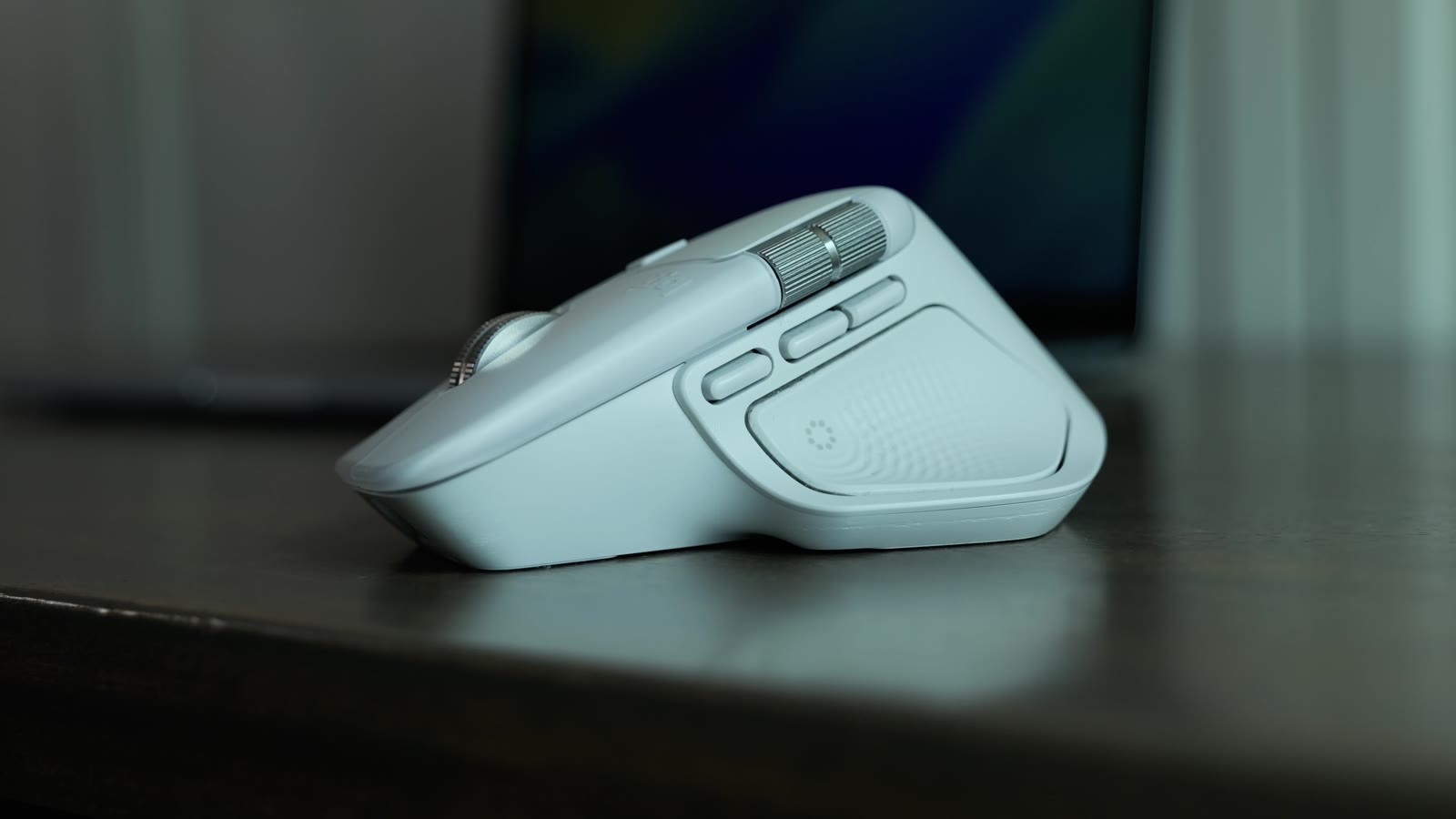
The reason to buy an MX Master has always been the shape, and Logitech left the good part alone. The tall body raises your wrist into a natural position, there is a dedicated spot for your thumb, and it stays comfortable through a full day of work. After nine months of daily editing I have had no wrist pain, with or without a wrist rest. I use one, and it makes a good thing better.
The clicks are quiet. They are just loud enough to confirm the press without being annoying in a shared room. The one real downside is size. This is a big mouse, and it is not going into a jeans pocket.
The Thumb Button Bug That Still Is Not Fixed
Here is the most frustrating thing. You cannot use the thumb button while you are clicking. If you are mid click or dragging, the thumb button will not register. The strange part is that the 3S could do this, so it reads like a firmware regression, and nine months after launch it still has not been patched. It feels like something that should be fixable in software, and I do not understand why it has not been. If you rely on click and drag combos, know that going in.
What Logitech Fixed From the MX Master 3S
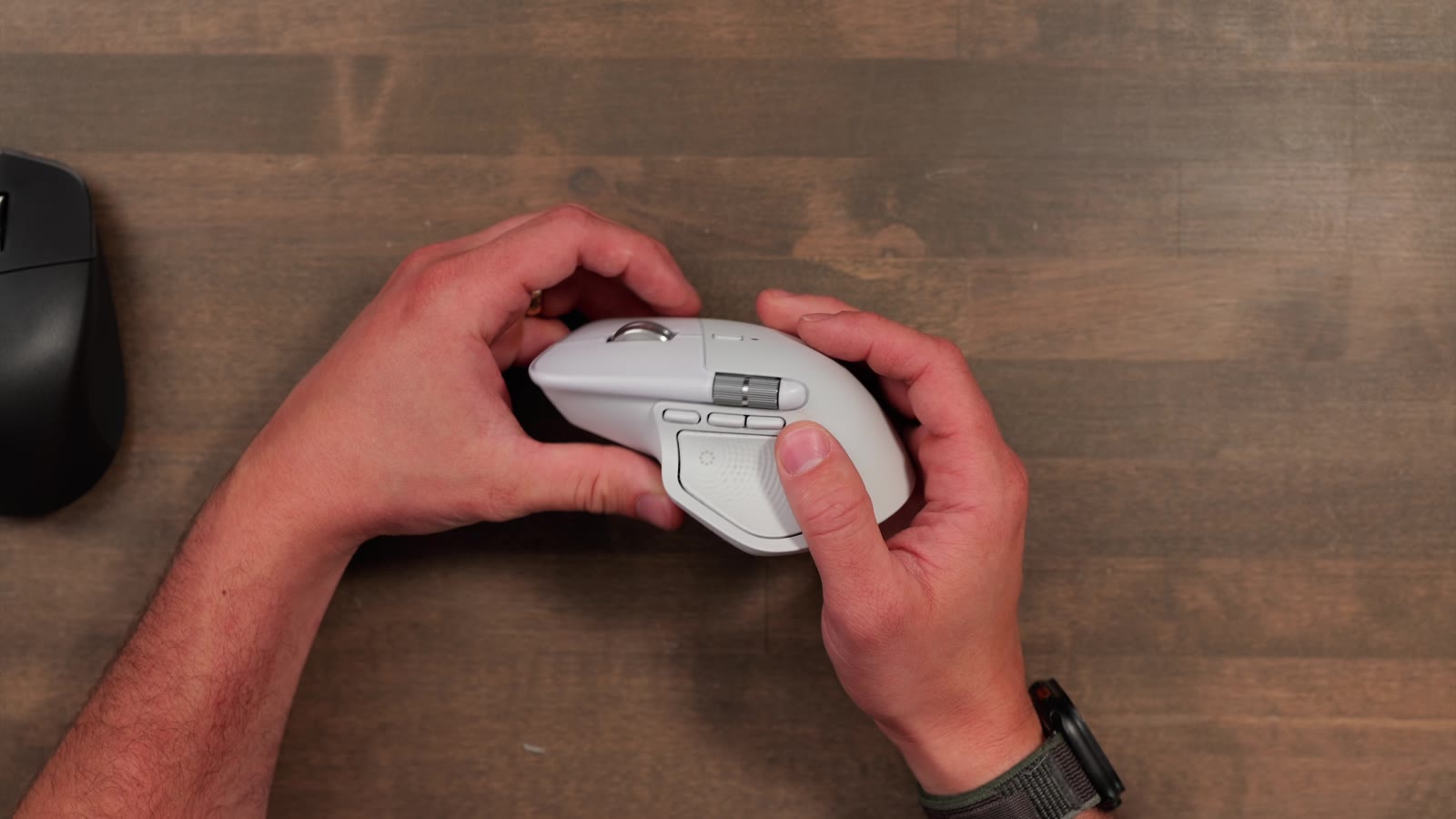
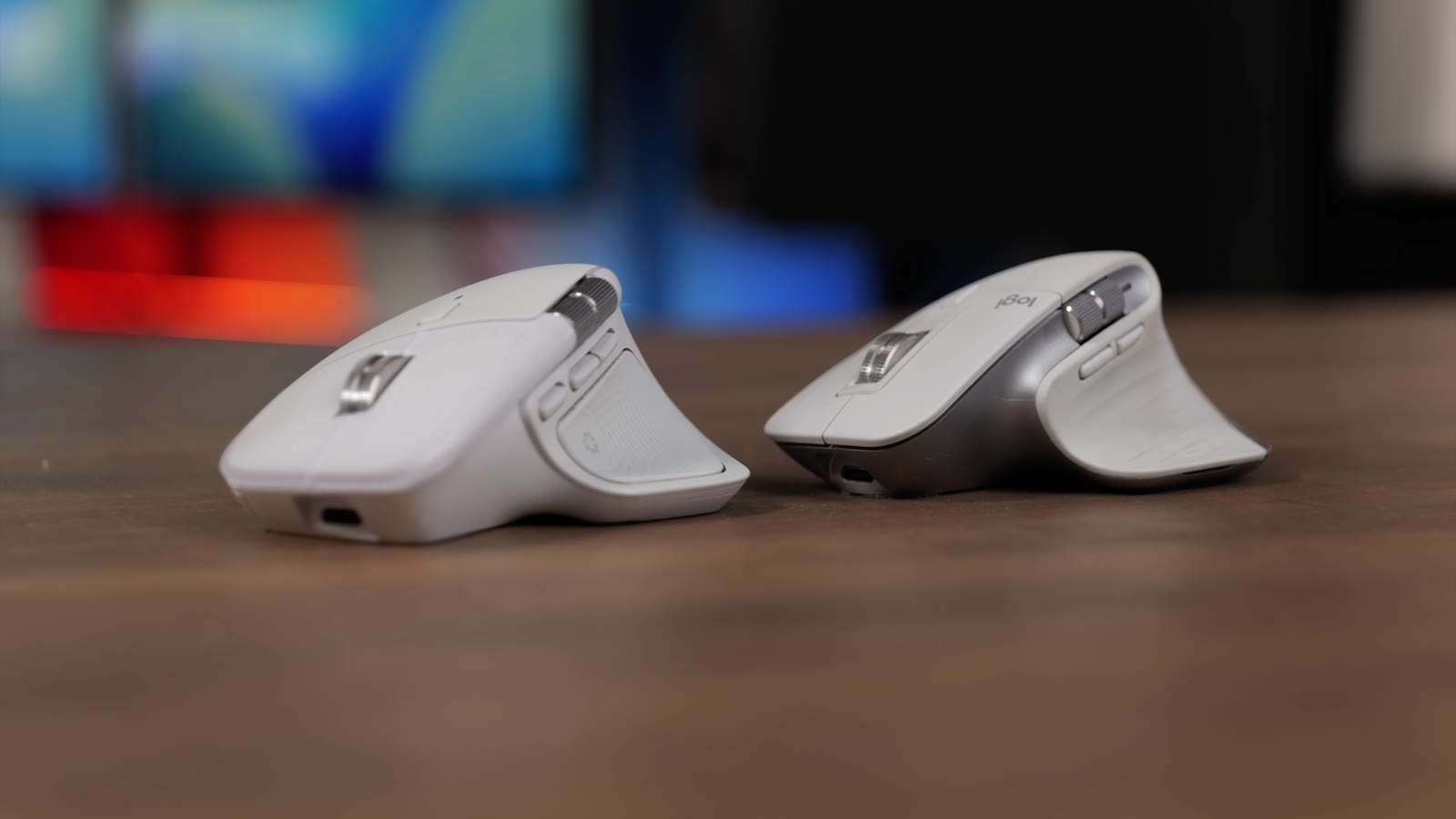
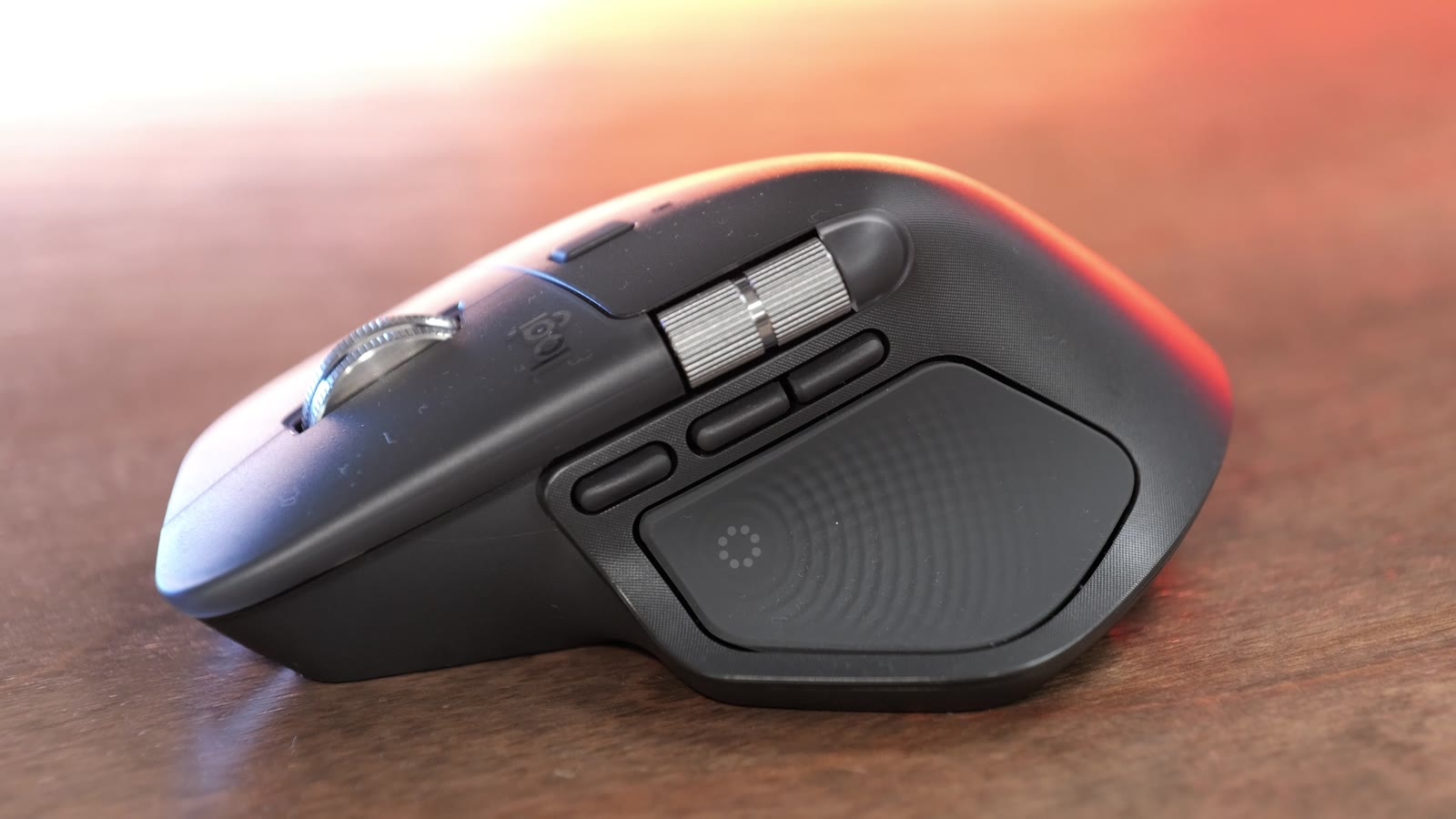
If you are coming from the 3S, the upgrades are real. The biggest one is the material. The 3S had a rubber grip across the top that could get uncomfortable and, over time, feel like it might peel. The lighter colors were also famous for looking grimy. The MX Master 4 drops that grip for a textured plastic back with smooth keys. After nine months mine still looks new, and I am not careful with it. Logitech now only coats the thumb rest and the ring and pinky area on the side.
On top of the material change, the 4 adds an extra customizable side button and a new haptic feedback motor. Here is how the two compare.
| MX Master 3S | MX Master 4 | |
|---|---|---|
| Top surface | Rubber grip that can wear or peel | Textured plastic that holds up |
| Haptic feedback | No | Yes |
| Customizable side buttons | Fewer | Three, plus the Action Ring |
| Scroll wheel | MagSpeed | Same MagSpeed, unchanged |
| Quiet clicks | Yes | Yes |
Scrolling: A Great Side Scroll and a Scroll Wheel I Worry About
The side scroll is one of my favorite features. I use it constantly for video editing, and it has just the right resistance to move across a timeline quickly while still giving a little feedback. I was afraid that resistance would wear off, but nine months in it still feels great.
The main scroll wheel is where I have a reservation. It is the exact same wheel as the 3S, which is a letdown, because that wheel had a reputation for wearing out. One of my own 3S units still spins fine but developed a rattle. The 4 wheel works well today, and you still get the click to press, the ratchet and free spin toggle on the back, and adjustable sensitivity in Logi Options+. I am just nervous about how long it will hold up, and it is the one part I most wish Logitech had redesigned.
The Side Buttons and the Action Ring
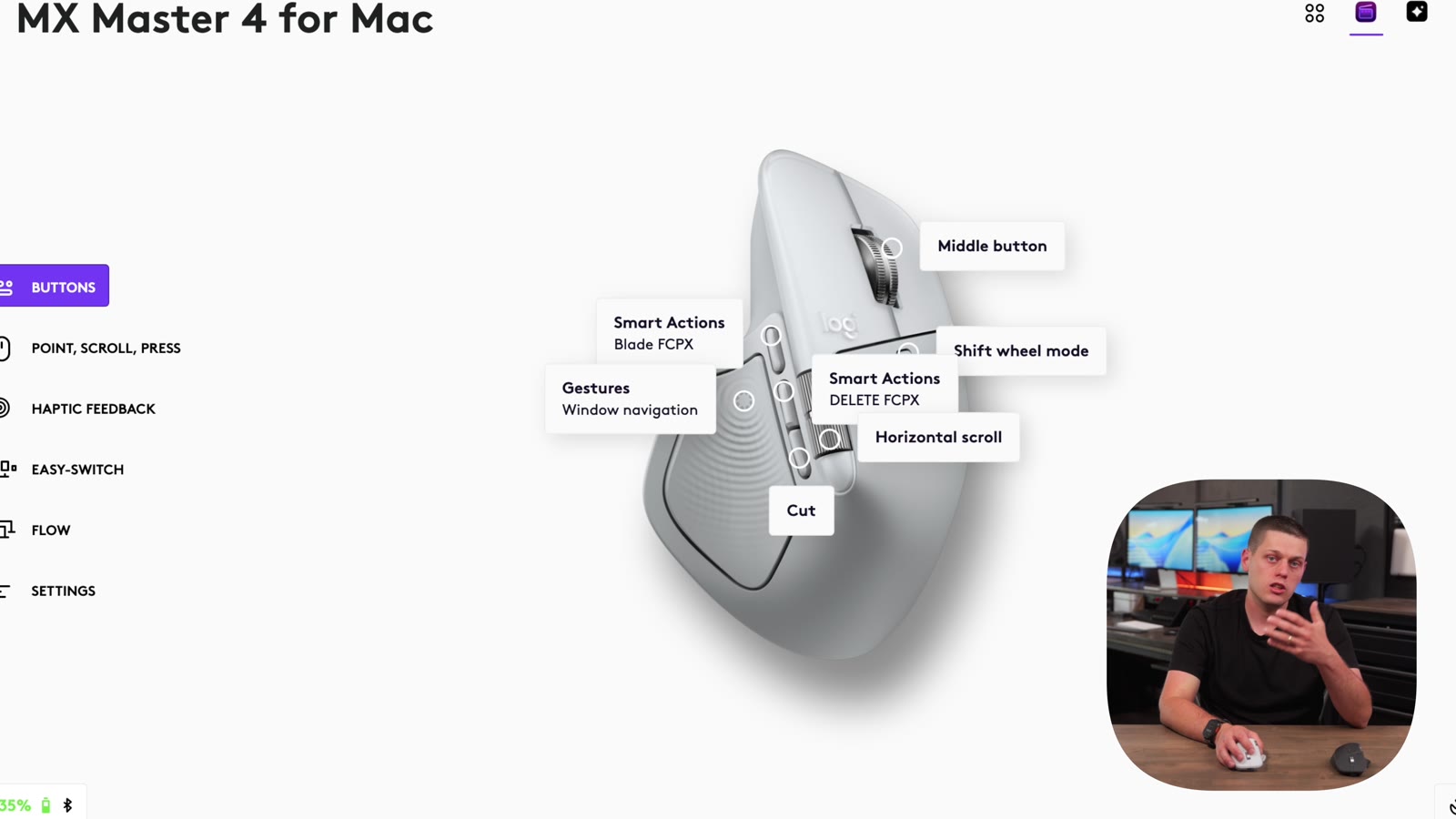
The three side buttons are comfortable and well placed, with two grouped together and one set a little further away. In Final Cut Pro I map them to cut, blade, and delete, which are the three that save me the most time. Keeping precise mouse control while firing off edits without touching the keyboard is a big part of why this mouse is worth it.
The new Action Ring is more of a mixed bag. Press the thumb button and a wheel of shortcuts appears, and you flick the mouse toward one to trigger it. It is app aware, with built in presets for Photoshop, DaVinci Resolve, and Final Cut, plus anything you want to map yourself. It is clever, but I turned it off. The 3S assigned that button to gestures by default, which is one of the best reasons to use an MX Master on a Mac. You can swipe between full screen apps and open Mission Control right from the mouse. So I remapped the button back to gestures. Your preference may be different, but I would rather have the gestures.
Haptic Feedback Is Better Than It Sounds
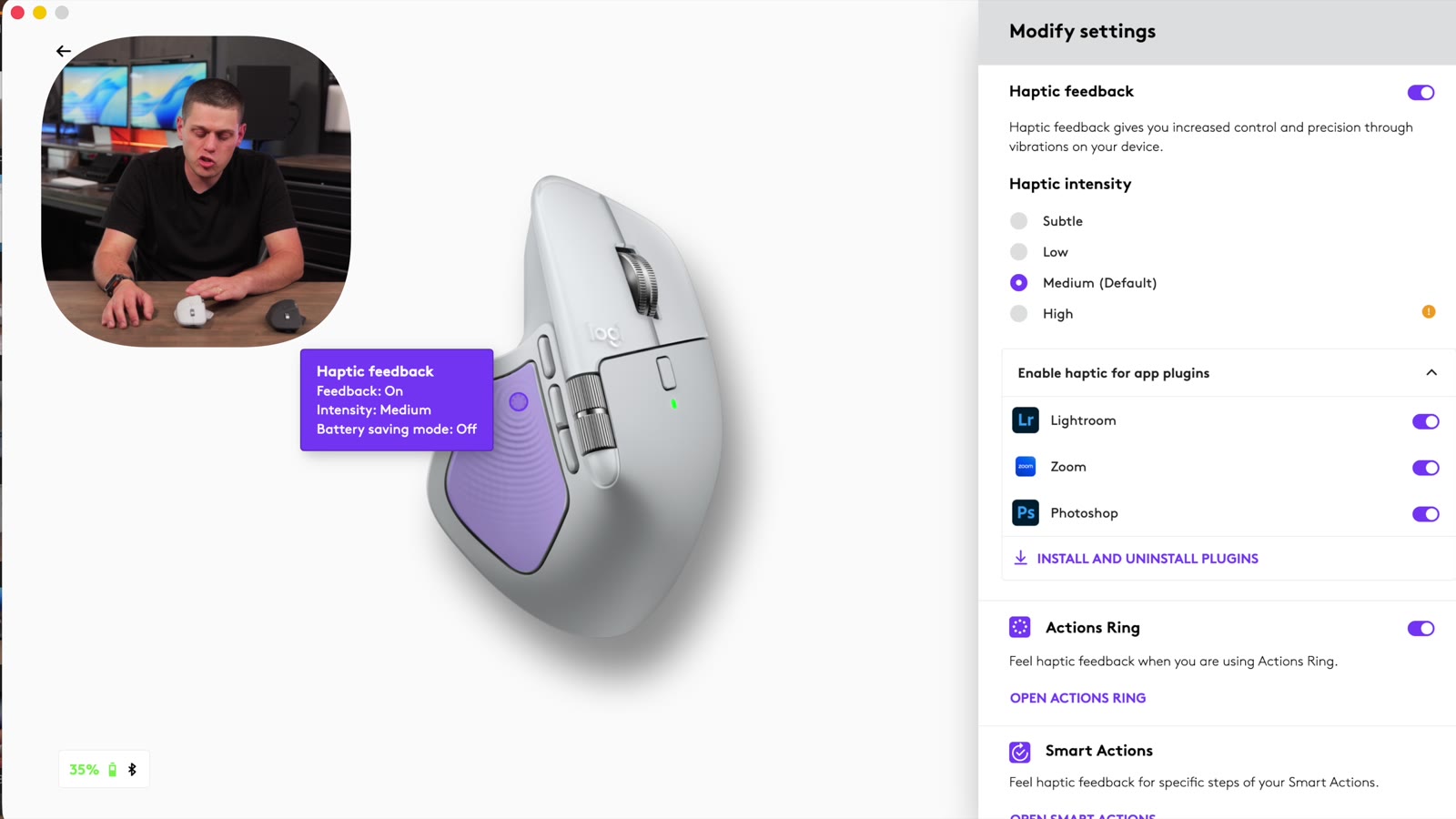
A vibrating mouse sounded like a gimmick to me at first. It is not. When you snap to a grid line in Photoshop, the small haptic pulse feels natural and confirms that your movement went where you intended. It also handles notifications and system events like power on, first connection, and a low battery alert. It is subtle, and it is one of those additions you stop noticing until you go back to a mouse without it.
Connectivity and the For Mac Version to Avoid
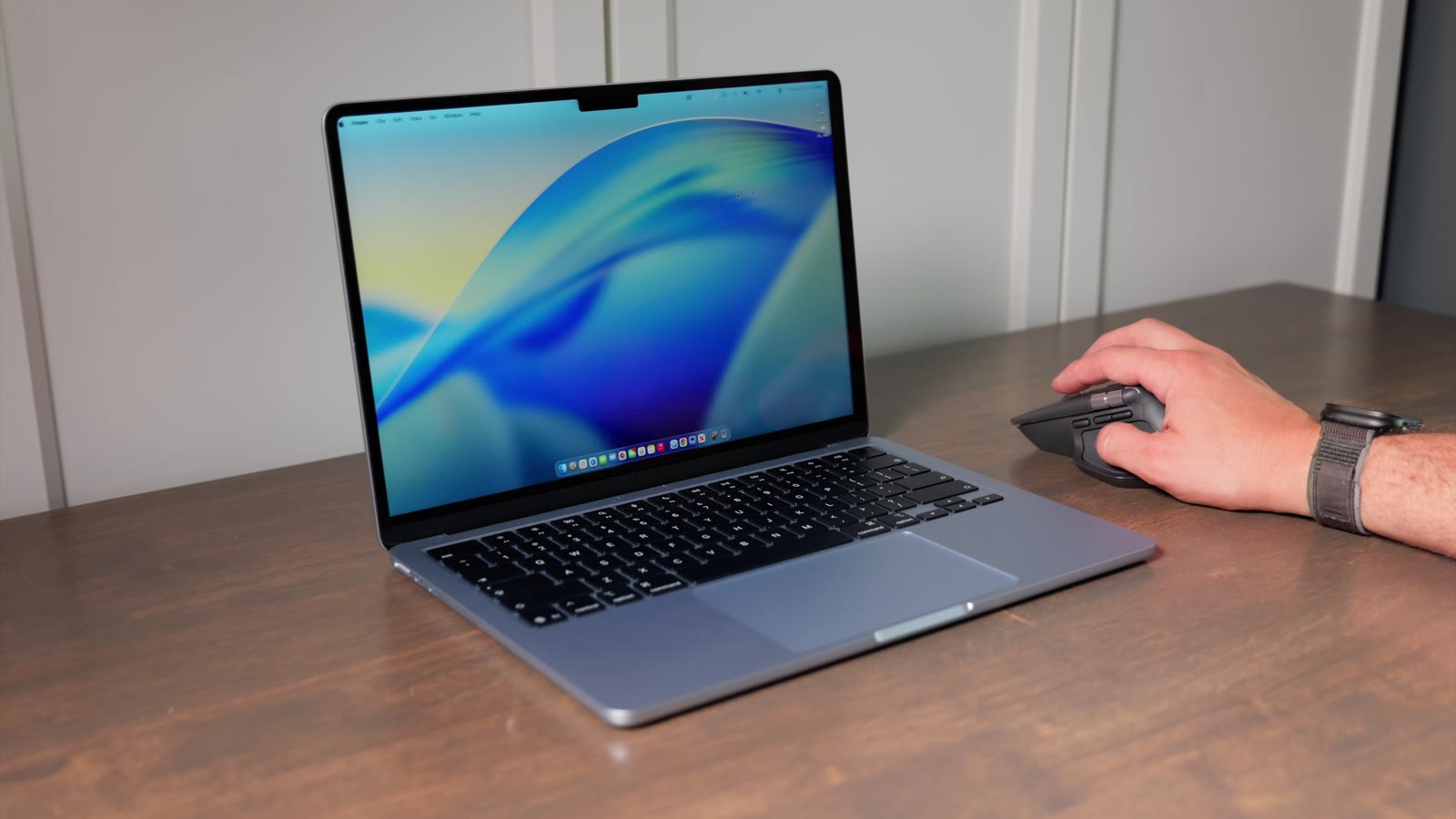
The MX Master 4 is a Bluetooth mouse, and setup is easy either over Bluetooth or with the included USB dongle. You get three device slots on the bottom, so you can pair it to a desktop, a laptop, and an iPad and switch between them. To pair, pick a slot, hold the button until the light blinks fast, then connect from your device Bluetooth settings.
One warning. Logitech sells a standard MX Master 4 and an MX Master 4 for Mac, and the Mac version leaves out the Logi Bolt USB dongle. That is the only real difference besides color. I bought both, and they are otherwise the same exact mouse. The dongle is genuinely useful, because it lets you plug in and pair instantly even on a machine where you cannot get to Bluetooth, so I would skip the Mac edition. The colors are close enough that the pale gray still looks great next to an Apple Magic Keyboard.
Logi Options+ Is Where It Comes Together
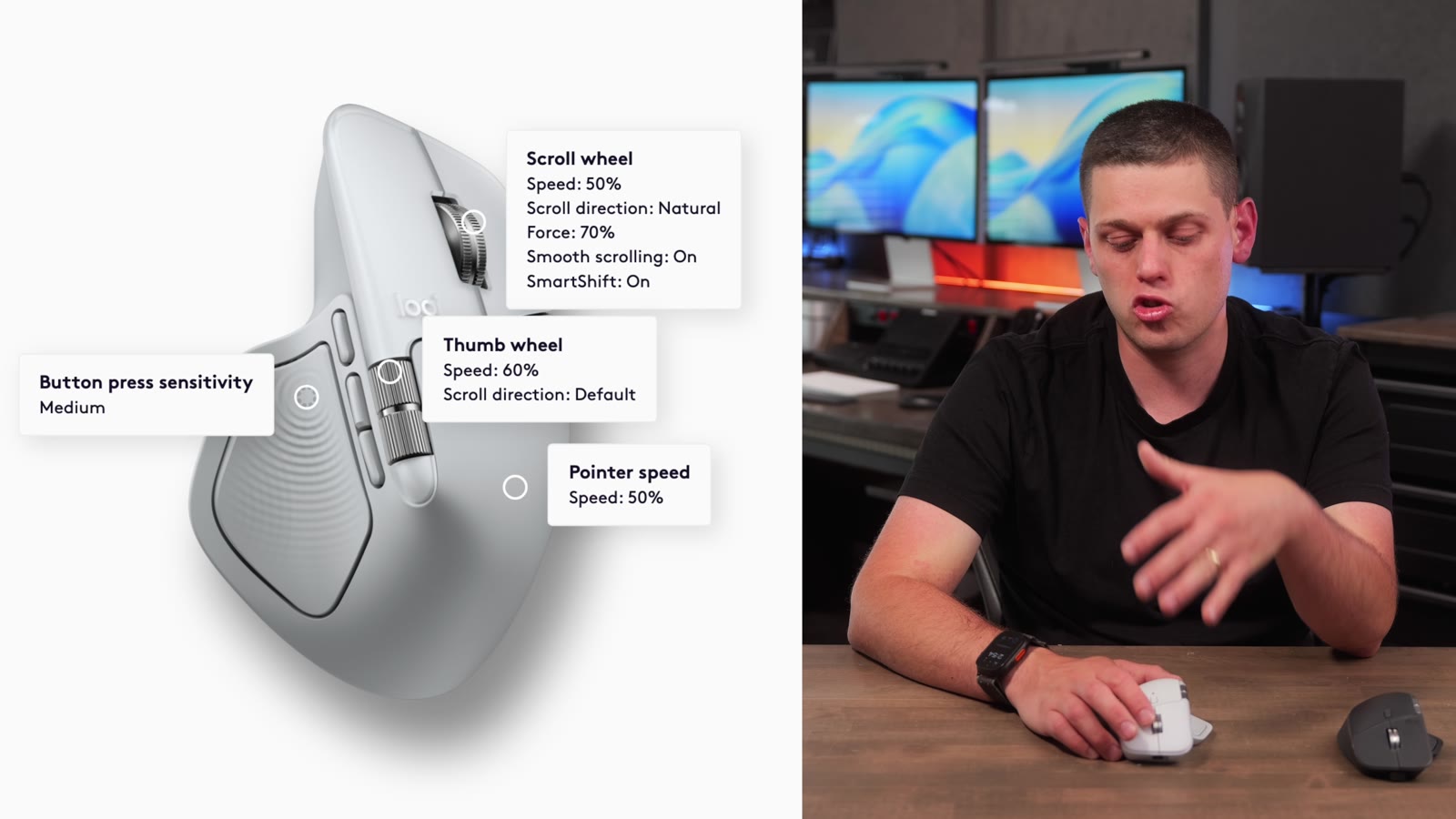
Almost everything is remappable in Logitech Logi Options+ app. That includes the thumb button, the scroll click, the three side buttons, the side scroll, and the Action Ring. The best part is that you can set custom profiles per application, so the mouse behaves one way in Photoshop, another in Final Cut, and another in Word or Excel. You can also tune pointer speed and sensitivity, scroll speed, and scroll acceleration so a faster flick scrolls proportionally further. On macOS it all just works, and it is the difference between a nice mouse and one that actually makes you faster.
Price: $120 Versus the Apple Magic Mouse
At $120 the MX Master 4 is expensive, especially next to the roughly $70 Apple Magic Mouse. I would take the MX Master any day, and it is not close. The Magic Mouse lies flat, while the MX Master raises your wrist and stays comfortable for hours. The side scroll means you are not constantly repositioning your fingers, and the customization is in another league.
| MX Master 4 | Apple Magic Mouse | |
|---|---|---|
| Price | About $120 | About $70 |
| Ergonomic shape | Tall, raises your wrist | Flat |
| Side scroll | Yes | No |
| Per app customization | Extensive | Minimal |
The Verdict After Nine Months
Nine months in, the MX Master 4 has completely replaced my 3S and I do not miss a thing about the old one. It is more comfortable, the rubber grip is gone, the haptics are a nice touch, and the extra side button earns its place. For a productivity or editing mouse, this is the one I recommend.
Two things keep it from a perfect score. First is the thumb button bug while clicking, which should be a software fix. Second is the carried over scroll wheel. It works, but I am not confident about how long it will last, and Logitech warranty is only about a year. They were no help when I tried to get a 3S repaired, which makes the whole line feel a little like a consumable. A future model really just needs a better wheel and that one bug fixed.
Even so, it is worth it. It is comfortable enough and efficient enough that I would buy another even if I had to replace it every year. If you have never owned an MX Master, now is the time, because this one is about as close to perfect as the line has gotten.