Some of the links in this post are affiliate links, which means I may earn a small commission if you choose to make a purchase at no extra cost to you. As an Amazon Associate, I earn from qualifying purchases. Read my full Ethics & Affiliate Relationship Disclaimer.
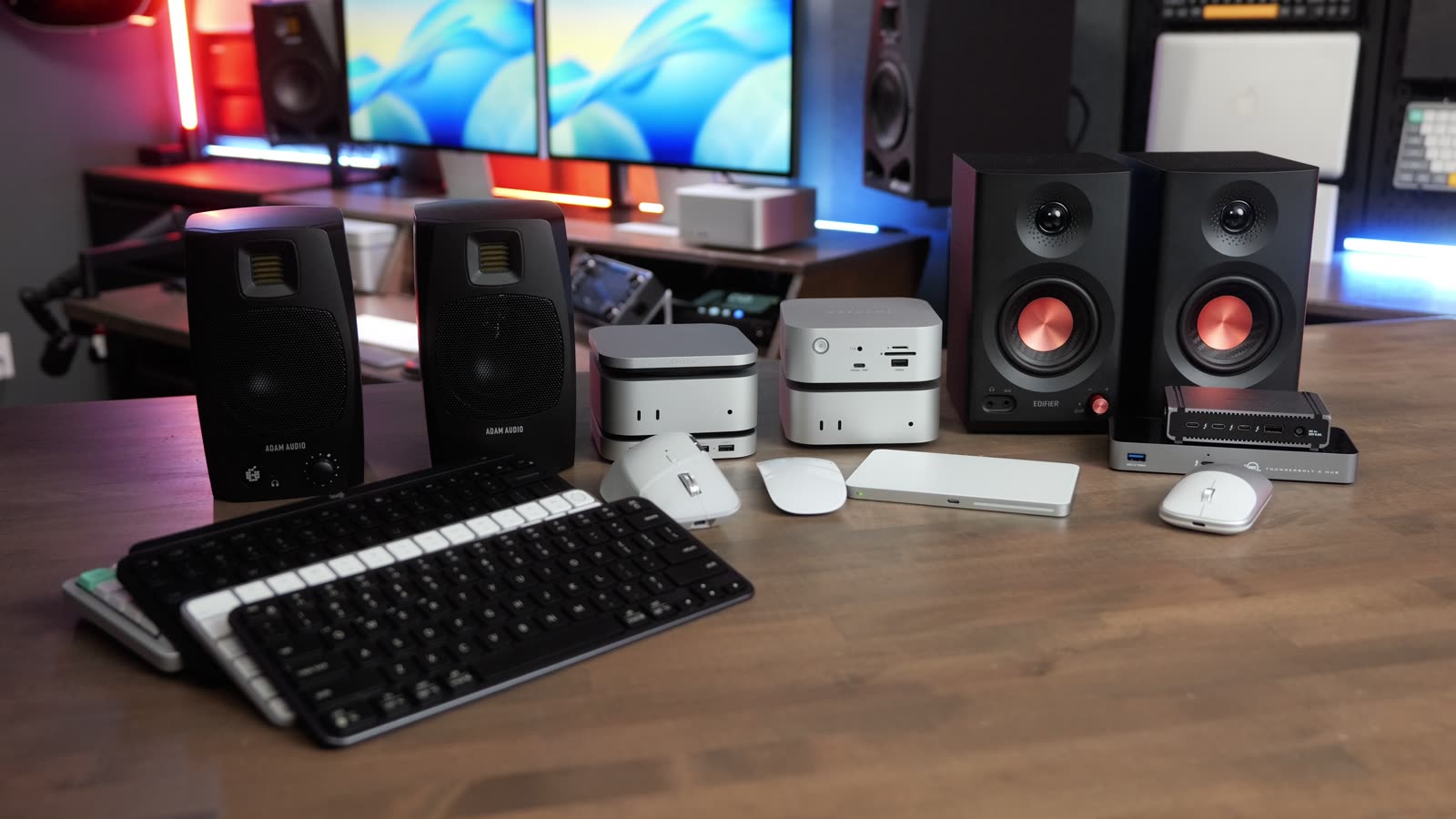
The new Mac mini is out with the M6 and the M5 Pro, and it’s a fantastic computer. But all you get in the box is the Mac and a power cord, and you can’t even set it up without a keyboard and mouse. Whether you’re upgrading a few pieces or building a whole new setup, these are the accessories I’ve been using with my M6 and M5 Pro Mac minis.
A few of these were sent to me by brands, and I’ve marked those. No one paid for placement. Where I’ve done a full review, I link to it so you can get more detail before you buy.

| Category | My pick | Also great |
|---|---|---|
| Mouse | Logitech MX Master 4 | Satechi Slim EX Mouse (budget) |
| Keyboard | Apple Magic Keyboard with Touch ID | Satechi EX1 (budget) |
| SSD add-on | Satechi USB4 Slim NVMe enclosure | Satechi stand & hub |
| Docking station | Satechi CubeDock | CalDigit Element 5, OWC Thunderbolt 5 Hub |
| External SSD | Oyen U35 Bolt Plus (M5 Pro) | Oyen U34 Bolt (M6) |
| Display | Apple Studio Display 2 | LG 27-inch 4K (budget) |
| Webcam and mic | iPhone on the Stouchi MagSafe mount | Elgato Facecam and Wave:3 |
| Speakers | ADAM Audio D3V | Edifier MR3 (budget) |
Mice and trackpads
You need a mouse before you can even set up a Mac mini, and these are my picks.
Logitech MX Master 4

My personal favorite mouse is the Logitech MX Master 4. It’s comfortable for long editing sessions because of its raised ergonomic shape, and I love the side scroll for getting across timelines. You also get customizable buttons on the side.
My full take: Logitech MX Master 4 review
Logitech MX Anywhere 3S

If you want a slightly smaller mouse, Logitech also has the MX Anywhere 3S. It’s a little lighter and not as big, but it still has a better grip than some of the other options on this list.
Apple Magic Mouse

The Apple Magic Mouse is always an option if you like gestures and a clean-looking desk. You get the smooth top for scrolling, you can click on the left or right side, and you can customize it with Apple’s software. I love it for going between desktops and Mission Control with multi-finger swipes.
My full take: Magic Mouse vs MX Master 4
Satechi Slim EX Mouse

If you want a cheaper option, Satechi has their EX Mouse (sent by Satechi). It’s not the most comfortable mouse in the world, so it’s better for shorter sessions. It has a decent scroll wheel, left and right click, and it recharges over USB-C.
Apple Magic Trackpad

If you’re coming from a MacBook, the Magic Trackpad is going to feel like home. You get the same gestures, like swiping between desktops and Mission Control, and it has a lower profile. Browsing, swiping and scrolling all feel effortless on the haptic, touch-sensitive surface, and it recharges over USB-C too.
My full take: MX Master 4 vs Magic Trackpad
Keyboards
Apple Magic Keyboard with Touch ID

On the keyboard side, it’s still hard to beat the Apple Magic Keyboard because it has the Touch ID button. If you want to save a little money, you can get the slightly cheaper version without Touch ID. It also has the Globe key, which I use for a ton of Apple shortcuts like tiling and centering windows. It’s my all-time favorite keyboard because it matches a Mac layout perfectly.
My full take: Magic Keyboard compact vs full size
Satechi EX1

On a budget, there’s the Satechi EX1 (sent by Satechi). It looks a lot like the Apple one, and you can get it in space gray or white. The Globe key doesn’t work like it does on the Apple keyboard, which is a bit of a letdown, and the keys aren’t quite as tactile. It’s still very accurate, all the other shortcuts match the Apple one, and it’s only about $50. No Touch ID, though.
Logitech MX Keys Mini

The best scissor switch keyboard I’ve used is the Logitech MX Keys Mini. It’s backlit, you can switch between devices with the buttons on top, and you can change what any button does in Logi Options+. The keys have divots, and it gives the best typing feedback of the bunch. I’m the most accurate typing on this one. The big trade-off is no Globe key and no Touch ID.
NuPhy Air75 V3

If you like a mechanical keyboard, I’ve enjoyed the NuPhy Air75 V3 (sent by NuPhy). It comes with a few different switch types. I like the blush switches because they’re totally silent, and this one has the brown switches, which have a satisfying typing feel. It’s so tactile, and I love typing on it.
My full take: NuPhy Node 75 vs Air75 V3
All of these keyboards also come in a version with a number pad. Personally, I skip the number pad. I find it faster to go from the keyboard to the mouse without it in the way.
Ports and SSD add-ons

The Mac mini has a couple of Thunderbolt ports on the back, HDMI, a network port, and two USB-C ports on the front. Those fill up fast, especially if you plug in external displays or fast external SSDs. Most of the accessories I like for this are from Satechi.
Satechi USB4 Slim NVMe enclosure

This one’s kind of a sleeper: the Satechi USB4 Slim SSD enclosure (sent by Satechi). You bring your own NVMe drive, and it’s simple to install. You take off the top piece, put the NVMe in the bottom, and now it matches the Mac mini perfectly. It sits on top of the mini and connects with a single USB-C cable.
With a Samsung 990 Pro inside, I got about 3,500 MB/s write and 3,400 MB/s read on both the M6 and the M5 Pro.
Satechi stand & hub

Satechi also has their stand and hub (sent by Satechi). It uses a single USB-C port and works as a little stand for the Mac mini. You get a couple of USB-A ports on the front and an SD card slot, and it still lets you reach the power button, which is a nice trick.
It has an SSD slot on the bottom too, but it runs at the slower 1,000 MB/s class of speeds. I got about 980 MB/s write and 850 to 870 MB/s read. That’s still fine for editing video, storing files or backing up with Time Machine, but it’s a lot slower than the Mac’s internal drive.
Thunderbolt 4 vs 5
The M5 Pro has Thunderbolt 5 ports and the M6 has Thunderbolt 4, which can be confusing because some of the docks below use Thunderbolt 5. They’re backward compatible with Thunderbolt 4. Thunderbolt 5 doubles the bandwidth from 40 to 80 Gb/s, and it can reserve extra bandwidth for displays, up to 120 Gb/s.
The simple version: all of these docking stations work with the M6. The SSDs you put in them won’t hit the same speeds, and if you fill every port you might not get the top speeds you’d see on a Thunderbolt 5 Mac. They all still work fine with the M6.
Docking stations
OWC Thunderbolt 5 Hub

The first option is the OWC Thunderbolt 5 Hub. It plugs into your Mac with a single Thunderbolt 5 cable, and you do have to power it. You get more Thunderbolt ports on the back, another one on the front, and a USB-A port, so you can plug in external displays, fast SSDs or anything else that uses USB-C.
My full take: The best Thunderbolt 5 docks
CalDigit Element 5

The next option costs a little more, but it fits the Mac mini a little better: the CalDigit Element 5. One Thunderbolt cable goes to your Mac, and you get three more Thunderbolt ports and a USB-A port. On the front you also get two more USB-A ports and two USB-C ports, so you add a ton of connectivity with a single cable.
It sits nicely on top of the Mac mini. It’s not a perfect match like the CubeDock, but it still looks good. You don’t need network or display ports here, since you can always use the mini’s HDMI or a USB-C to HDMI adapter.
My full take: CalDigit Element 5 vs TS5 vs TS5 Plus
Satechi CubeDock

The best docking station for the Mac mini is the Satechi CubeDock (sent by Satechi). At first glance it looks exactly like a Mac mini, and I love the design. You get 2.5 gigabit Ethernet, 10 gig USB-A and another 10 gig port on the back, and it plugs into your Mac with a single Thunderbolt cable. You have to power this one too. It adds three more Thunderbolt ports, and on the front you get microSD, SD, USB-A and a 30 watt USB-C port for charging other devices.
You can run it right on top of your Mac mini for a stacked setup, and these docks all come with a Thunderbolt cable in the box.
The other trick is the fast SSD slot on the bottom. With a Samsung 990 Pro inside, I got about 6,390 MB/s write and 5,950 MB/s read on the M5 Pro over Thunderbolt 5, and about 3,490 MB/s write and 3,400 MB/s read on the M6 over Thunderbolt 4. On the M5 Pro that’s faster than the internal drive, so you could even set it up as your home folder. It has a fan that exhausts out the back, and I’ve had no issues with it.
My full take: Satechi CubeDock review
External SSDs
If you don’t get a dock with an SSD slot, here are my other picks.
OWC Envoy and Envoy Pro mini

On the lower end, there’s the OWC Envoy and Envoy Pro mini (sent by OWC). The Envoy Pro mini is a compact thumb drive, so you don’t have to worry about a cable. It’s in the slower 1,000 MB/s or less class. I got about 820 MB/s read and write on both Macs. It’s handy for plugging into your Mac mini and moving files over from your phone, your iPad or another computer. The standard Envoy is also a very compact SSD, and it runs at basically the same speed.
My full take: OWC Envoy Pro Mini review
Oyen U34 Bolt and U35 Bolt Plus

If you want a better SSD, I recommend the Oyen U34 Bolt or the U35 Bolt Plus (sent by Oyen), and they’re very close in price. The U34 is USB4, and the U35 is USB4 v2, which runs at 80 gig speeds. Get the U35 if you have the Thunderbolt 5 M5 Pro, and the U34 if you have the M6. If they’re the same price, the U35 still works fine on the M6. In my tests it was faster than the U34 there, just not at full Thunderbolt 5 speed.
These are two of the fastest SSDs I’ve ever tested, and they have large caches, so they don’t slow down even when you’re copying 500 GB of photos. They’re also a great option if you bought the 256GB or 512GB Mac mini and want to run your home folder, or even your whole operating system, off an external drive.
My full take: Oyen U35 Bolt+ review
My full take: Oyen U34 Bolt long-term review
OWC 1M2

If you want to put in your own NVMe, OWC also makes the 1M2 in 40G and 80G versions. It’s an excellent enclosure with a giant heat sink design, so it does a great job getting rid of heat and works well even when you use it all day.
My SSD speed tests
Here are the Blackmagic Disk Speed Test results from the video, on the M6 (Thunderbolt 4) and the M5 Pro (Thunderbolt 5) Mac mini.
| Drive | M6 write / read (MB/s) | M5 Pro write / read (MB/s) |
|---|---|---|
| Satechi USB4 Slim enclosure (990 Pro) | 3,543 / 3,377 | 3,532 / 3,384 |
| Satechi stand & hub SSD slot (990 Pro) | 984 / 874 | 982 / 852 |
| Satechi CubeDock SSD slot (990 Pro) | 3,486 / 3,397 | 6,389 / 5,950 |
| OWC Envoy Pro mini | 817 / 823 | 819 / 812 |
| Oyen U34 Bolt | 2,525 / 2,905 | 2,647 / 2,983 |
| Oyen U35 Bolt Plus | about 3,700 / 3,860 | 5,793 / 5,725 |
| Internal drive | 8,205 / 6,429 | not tested |
More of my SSD test data is in my SSD guide.
Displays
Apple Studio Display

This one’s a little controversial, but my favorite display for the Mac mini is still the Apple Studio Display. You plug it in with a single Thunderbolt cable, you can daisy chain two of them, and it has a webcam, a microphone and speakers built in. You can change the brightness and the volume from the keyboard on your Mac mini, so everything just works.
To me it’s a great 5 to 10 year display. You’ll probably use it with more than one computer, and it can power a laptop too. It is pricey, but I think it’s a great investment if you use a display all day, every day.
My full take: Apple Studio Display 2 review
LG 27-inch 4K

On the lower end, there’s an LG 4K display I’ve been testing that I love, and it’s only about $250. The trade-off is that text won’t be as sharp as on a 5K display running on a Mac.
BenQ and ASUS 27-inch 5K
If you want a budget-friendly 5K display at 27 inches, BenQ has one, and ASUS has a great one as well.
ASUS ProArt 32-inch 6K
ASUS also has a 32-inch 6K display for about $1,300. I’ve tested that one, it looks really nice, and it’d be a great pair with the Mac mini.
My full take: ASUS ProArt PA32QCV review
Webcam and mic
Stouchi MagSafe Mount

If you get one of those displays, you’ll probably need a webcam, and the easiest thing to do is get this little Stouchi MagSafe mount. It unfolds and sits on top of your display, and your phone attaches magnetically. Then you can use Continuity Camera to FaceTime with your phone’s camera or record videos with it. You can adjust the angle, and it folds up out of the way when you’re not using it.
Elgato Facecam and Wave:3
If you want an actual webcam, I like the Elgato Facecam, and I also like the Elgato Wave:3 USB microphone. Both are plug and play with no drivers to install, but you can use Elgato’s software to change the sound, the color profile and the picture.
Speakers
Edifier MR3

I recently discovered the Edifier MR3s, and they sound really nice for the price. You can tweak the sound with Edifier’s app, and there are knobs on the back for changing the sound profile. They’re pretty compact, so they won’t take up much space on your desk, and you just plug them into the headphone jack on your Mac mini.
ADAM Audio D3V

If you’re willing to spend a bit more, the ADAM Audio D3Vs are the best sounding compact desktop speakers I’ve ever had. They plug in over USB, or into pro audio gear with the TRS jacks on the back, and switches on the back let you tune them for your desk and your room. The bass and the clarity are amazing for how small they are, and they come with little stands to angle them for your listening setup. They stack up well even against much more expensive studio monitors.
My full take: ADAM Audio D3V review
The bottom line
Those are all my favorite accessories for the M6 and M5 Pro Mac minis.
Still deciding which Mac mini to buy? I give free personalized Mac buying advice, and you can see every Mac I’ve tested.
Still deciding? Read my M6 vs M5 Pro Mac mini tests or the Mac mini M6 and M5 Pro buying guide.