Some of the links in this post are affiliate links, which means I may earn a small commission if you choose to make a purchase at no extra cost to you. As an Amazon Associate and a B&H affiliate, I earn from qualifying purchases. Read my full Ethics & Affiliate Relationship Disclaimer.
If you have a Mac, at some point you go looking for the best mouse to pair with it. Two of the best options right now sit at opposite ends of the spectrum: the Apple Magic Mouse and the Logitech MX Master 4. I have used both extensively, and they take completely different views of what a mouse should even be.
Here is the honest short version. If you sit at a desk for real work, the MX Master 4 is the more comfortable and more capable mouse, and it is the one I keep on my desk. The Magic Mouse is not trying to win that fight. It is a flat, minimal, throw-it-in-a-bag mouse for people who are all in on Apple and use a mouse lightly. This post breaks down where each one earns its place.
For most people doing real work on a Mac, the MX Master 4 is the better mouse. The Magic Mouse only wins if you want zero setup and barely touch a mouse.
- Zero setup
- Smaller, lighter and cheaper
- Works for lefties, where the MX Master 4 is right-handed only
- Comfortable all day thanks to its raised, arched shape
- Eight programmable buttons, plus top and side scroll wheels
- Switches between computers and iPads with a button on the bottom
- Works across Windows, macOS, Linux, iPadOS and ChromeOS
- Haptic feedback and an 8,000 DPI sensor
- First impressions: two very different mice
- The Magic Mouse design flaws I cannot ignore
- Buttons, gestures and customization
- Specs head to head
- Pairing and switching between devices
- Scrolling, charging and daily comfort
- Design and ergonomics
- Which version of the MX Master 4 to get
- Price breakdown
- Who each mouse is for
First impressions: two very different mice
The user experience on these is completely different. The Magic Mouse is a touch-first, smooth-surfaced mouse. There is no scroll wheel, but you can scroll and swipe right on the top surface. It has left and right click, and the clicking sound gets on my nerves a bit, though you get used to it.
The MX Master 4 is a completely different animal. Set them side by side and it is huge. It raises your wrist up and it is far more comfortable to hold. The top scroll wheel can run in a ratcheting mode for tactile feel or spin completely free. And where the Magic Mouse click is a little loud, the MX Master 4 is basically silent.
The Magic Mouse design flaws I cannot ignore
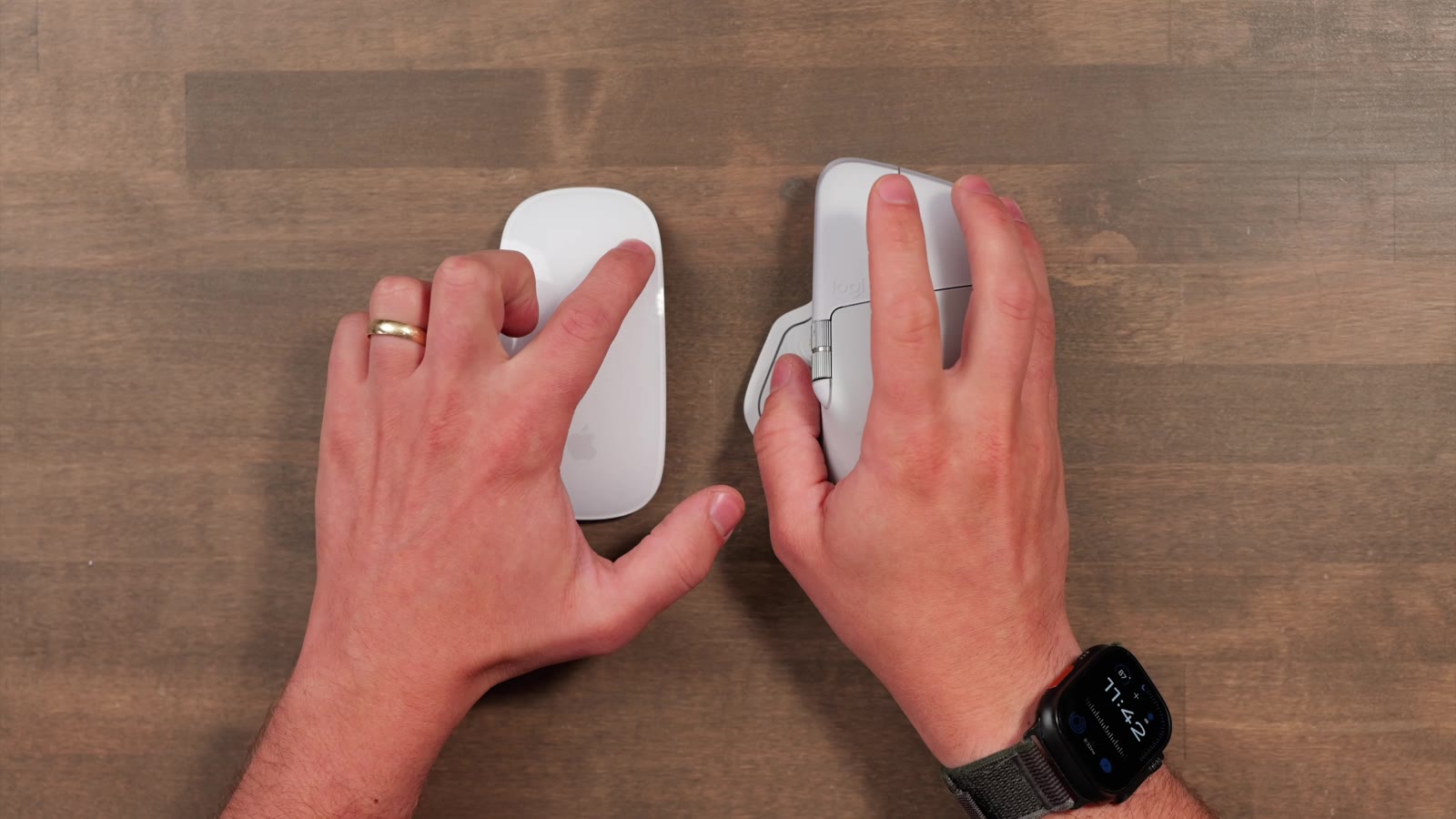
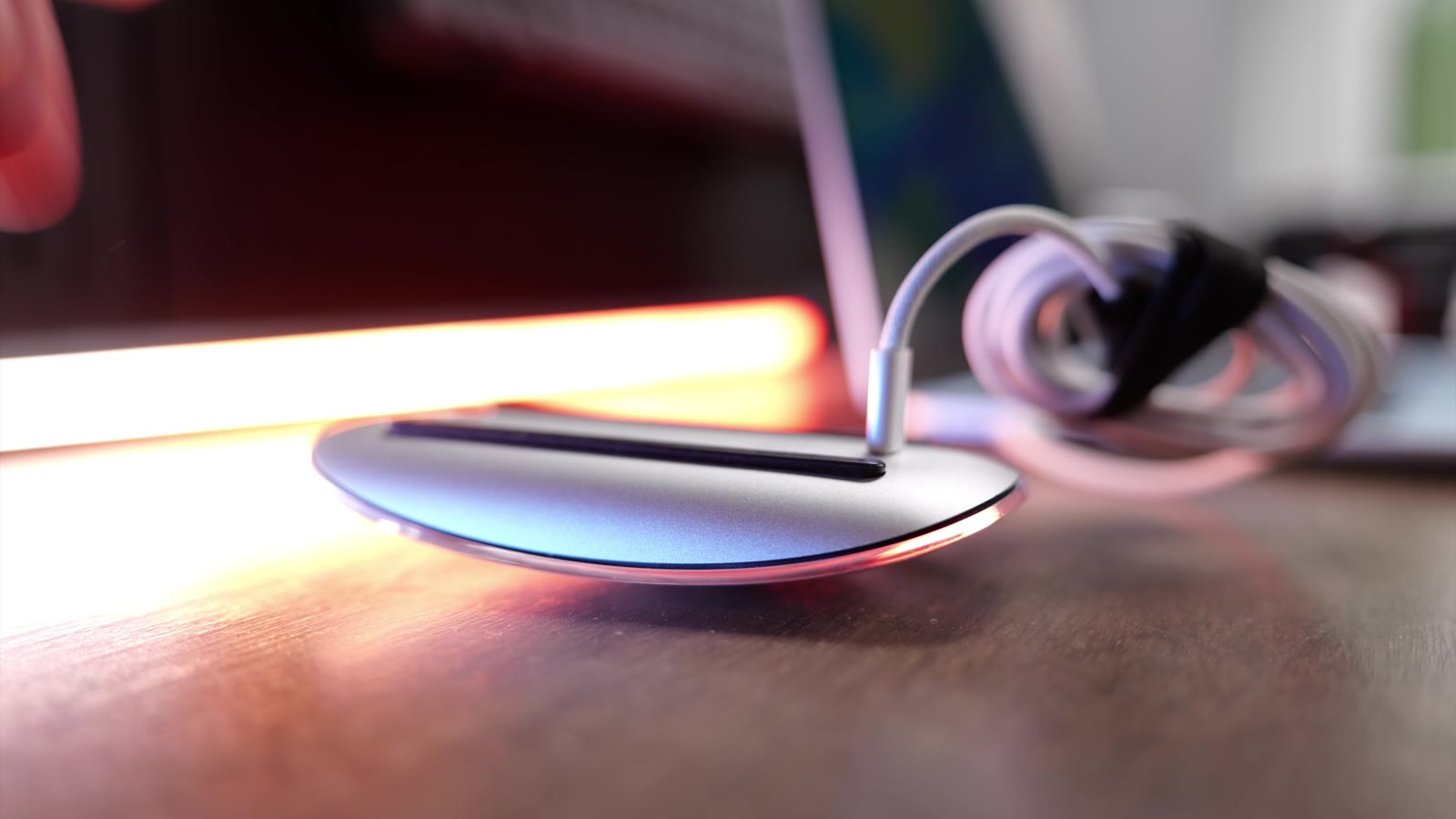
The Magic Mouse sits really flat against the desk. That is not comfortable for long sessions, and I found I needed a wrist rest with this mouse specifically. It was never designed to be the best mouse. It was designed to be a mouse that disappears, with no extra buttons and no clutter.
Apple also made the inexcusable choice to put the USB-C charging port on the bottom. You cannot charge it without flipping it over, which means when it dies you take a break, flip it, and plug it in for a few minutes before you can keep working. Battery life is good (about a month), so it does not happen often, but it makes no sense.
Buttons, gestures and customization
This is where the MX Master 4 pulls ahead. It has side scrolling you control with your thumb, which is genuinely handy in audio and video apps. On the side you get three more customizable buttons, plus a thumb button that by default opens the Logitech Actions Ring, a set of shortcuts you trigger by swiping the mouse in a direction.
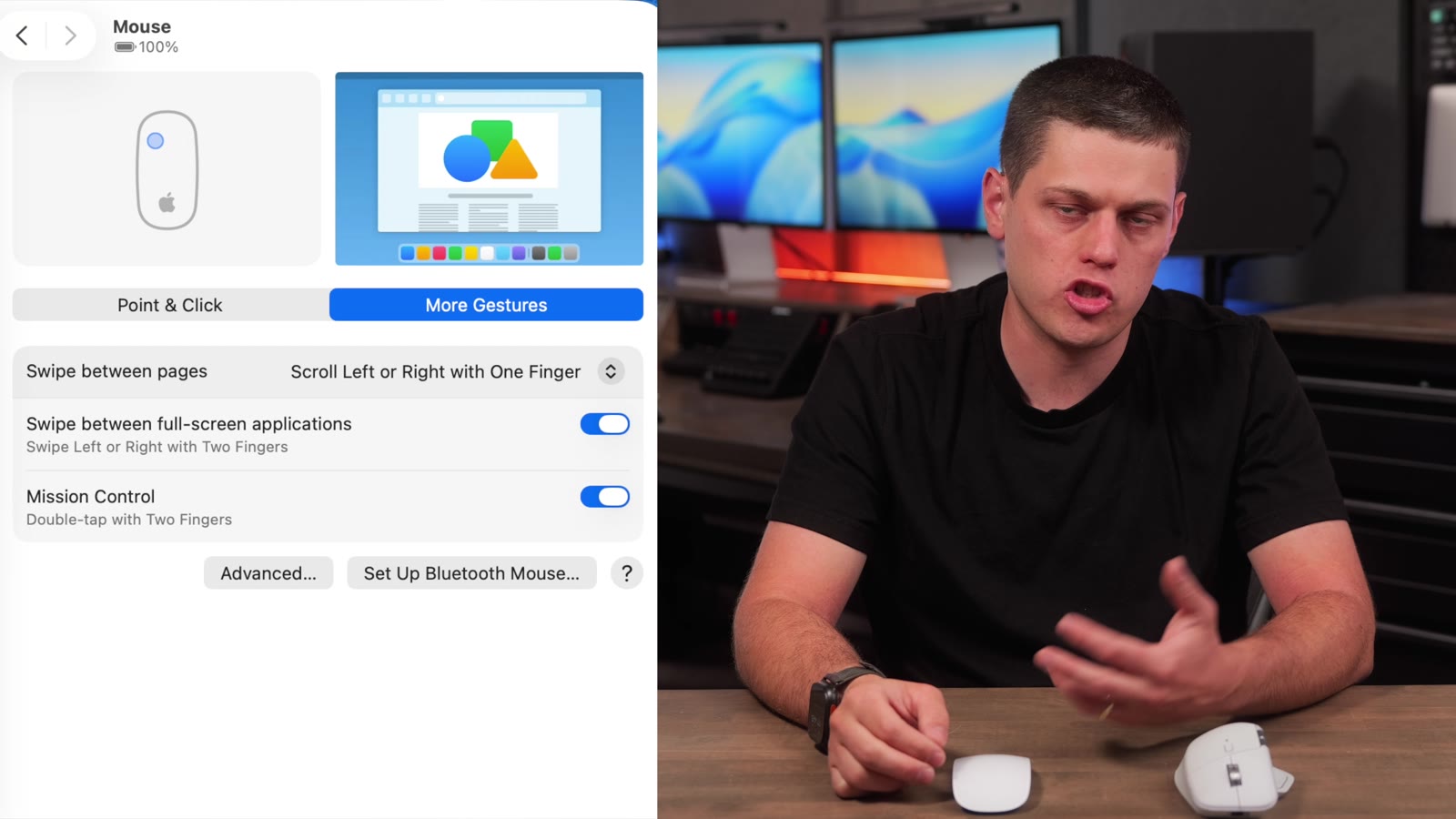
I actually remapped that thumb button to run the same Mac gestures the Magic Mouse supports, like Mission Control and switching between full-screen desktops. So you can have the Apple gestures and all the extra hardware.
The Magic Mouse’s real strength is its multi-touch top surface. You can swipe with multiple fingers to move between full-screen windows, zoom in and out, and two-finger tap for a secondary (right) click. It is elegant, but it is limited: it only pairs to one device at a time, and switching devices means unpairing and repairing or plugging in over USB-C.
Specs head to head
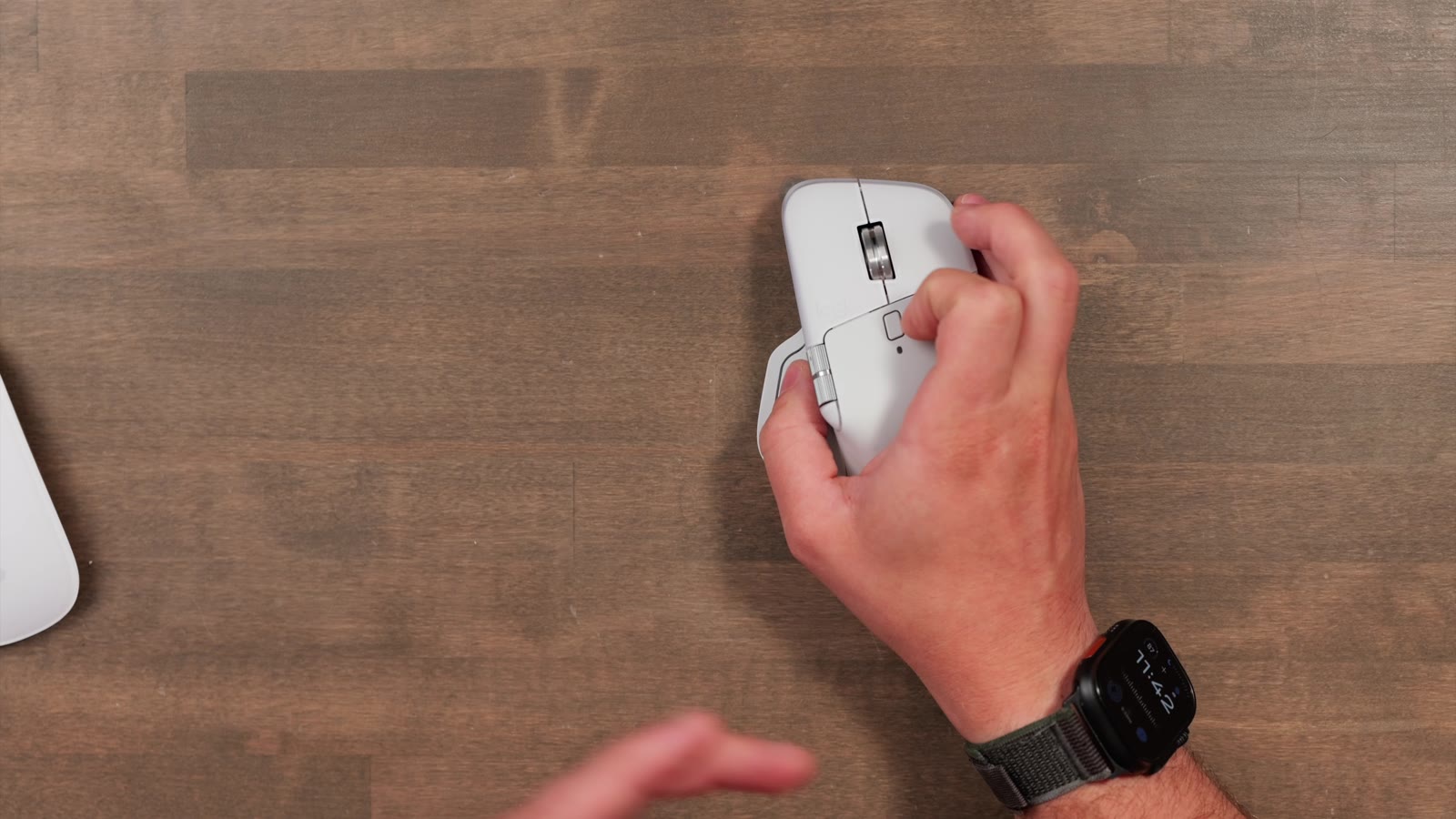
The MX Master 4 has an 8,000 DPI sensor for precise movement, eight programmable buttons, and both top and side scrolling. It also has haptic feedback, which the Magic Mouse lacks entirely: it vibrates gently as you lock onto guidelines or trigger actions. The trade-off is weight. The MX Master 4 is 150g against the Magic Mouse’s roughly 99g, and it is far more cross-platform.
| Feature | Apple Magic Mouse | Logitech MX Master 4 |
|---|---|---|
| Sensor | Standard | 8,000 DPI |
| Buttons | Left / right click only | 8 programmable buttons |
| Scrolling | Touch surface (top) | Top wheel plus side scroll wheel |
| Haptic feedback | No | Yes |
| Weight | ~99g | 150g |
| Platforms | macOS (Apple ecosystem) | Windows, macOS, Linux, iPadOS, ChromeOS |
| Multi-device switching | Re-pair or plug in each time | Button on bottom, instant |
| Charge while using | No (port on bottom) | Yes (port on front) |
| Handedness | Left or right | Right-handed only |
| Price | $80 white / $99 black | $120 |
Pairing and switching between devices
The MX Master 4 connects over Bluetooth or the Logi Bolt receiver. To pair, you flip it over, pick the slot you want, press and hold, and it goes into pairing mode. Once it is set up, you jump between multiple computers or iPads just by flipping it over and tapping that button. It is fast.
The Magic Mouse pairs by plugging it in with a USB-C cable, and it just works flawlessly on any Mac. But to change devices you have to plug that cable in every single time. Both use Bluetooth and both feel smooth on macOS. I did not notice any lag on either one.
Scrolling, charging and daily comfort
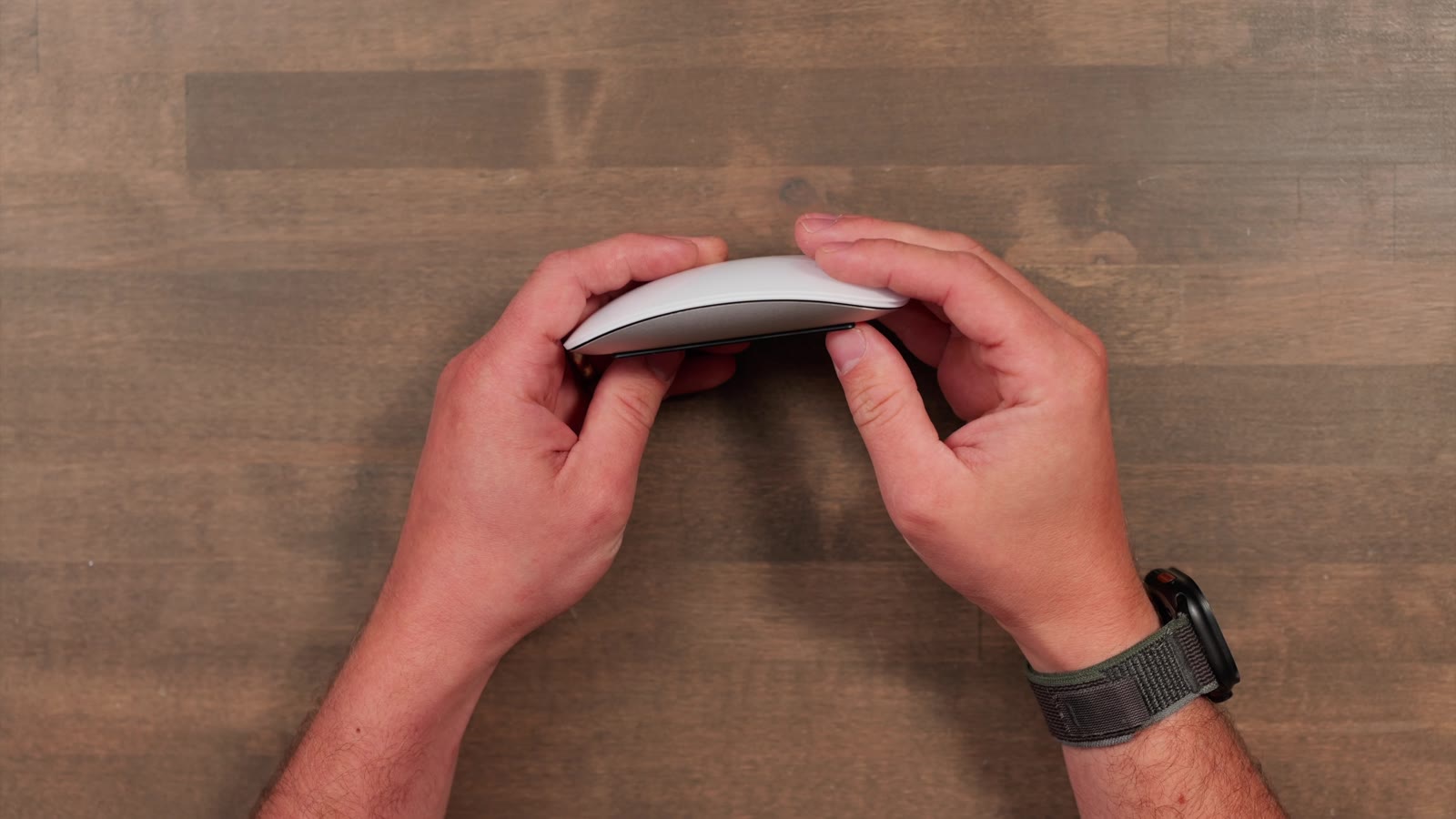
Scrolling on both is a joy. The touch scrolling on the Magic Mouse is very comfortable, but the MX Master 4’s wheels let you be more precise because you get one for vertical and one for horizontal.
Charging is a real difference in daily use. The MX Master 4 has its USB-C port on the front and keeps working while plugged in, so a dead battery never stops you. The Magic Mouse does not. And while you can adjust pointer speed on the Magic Mouse in the Apple mouse settings, the MX Master 4 gives you far more you can actually change.
Design and ergonomics
The MX Master 4 is built to fit your hand, with an arched body that supports your wrist. If you are on the computer six to eight hours a day, this is the one you want. The catch: they only make a right-handed version.
The Magic Mouse is a desk or on-the-go mouse. It is flat, low profile, and symmetrical enough to look clean next to a keyboard. It works left or right-handed since you can flip the buttons, and it takes up almost no space in a backpack while still giving you more precision than a trackpad.
Which version of the MX Master 4 to get
The MX Master 4 comes in a 4 Mac version and a standard version. I recommend the standard one because it includes a USB-C dongle. That lets you use the mouse without diving into Bluetooth settings first, which is genuinely handy if you do not already have a mouse to complete the pairing.
Price breakdown
The MX Master 4 retails for $120 and comes in several colors. The Magic Mouse is $80 for white or $99 for the black finish. So you are paying an extra $20 to $40 for the MX Master 4. That premium buys you the extra buttons, haptic feedback, cross-platform support, and the much more ergonomic shape. Whether it is worth it comes down to how you actually work.
Who each mouse is for
Get the Logitech MX Master 4 if you sit at your desk six-plus hours a day, if you value switching quickly between multiple computers, if you use both Windows and Mac, or if you want programmable buttons and gesture shortcuts.
Only get the Apple Magic Mouse if you are all in on the Apple ecosystem, want zero setup and no customization, and your usage is light browsing and basic productivity rather than sustained work. It is also a solid pick if you travel a lot and barely use a mouse, since it is smaller and lighter and disappears into a bag.
The verdict

For most people doing real work on a Mac, the MX Master 4 is the better mouse, and it is the one I keep on my desk. It is more comfortable, more capable, and it switches between devices in a way the Magic Mouse cannot touch. The price and the right-handed-only design are the real downsides, and if you only browse and type they are reasons to skip it.
The Magic Mouse is not a bad mouse. It is a deliberate one. It is minimal, light, and it just works with a Mac. If you want something that disappears and you rarely lean on it, it does that job well. But if you spend hours a day with your hand on a mouse, spend the extra $20 to $40.