Some of the links in this post are affiliate links, which means I may earn a small commission if you choose to make a purchase at no extra cost to you. As an Amazon Associate, I earn from qualifying purchases. Read my full Ethics & Affiliate Relationship Disclaimer.
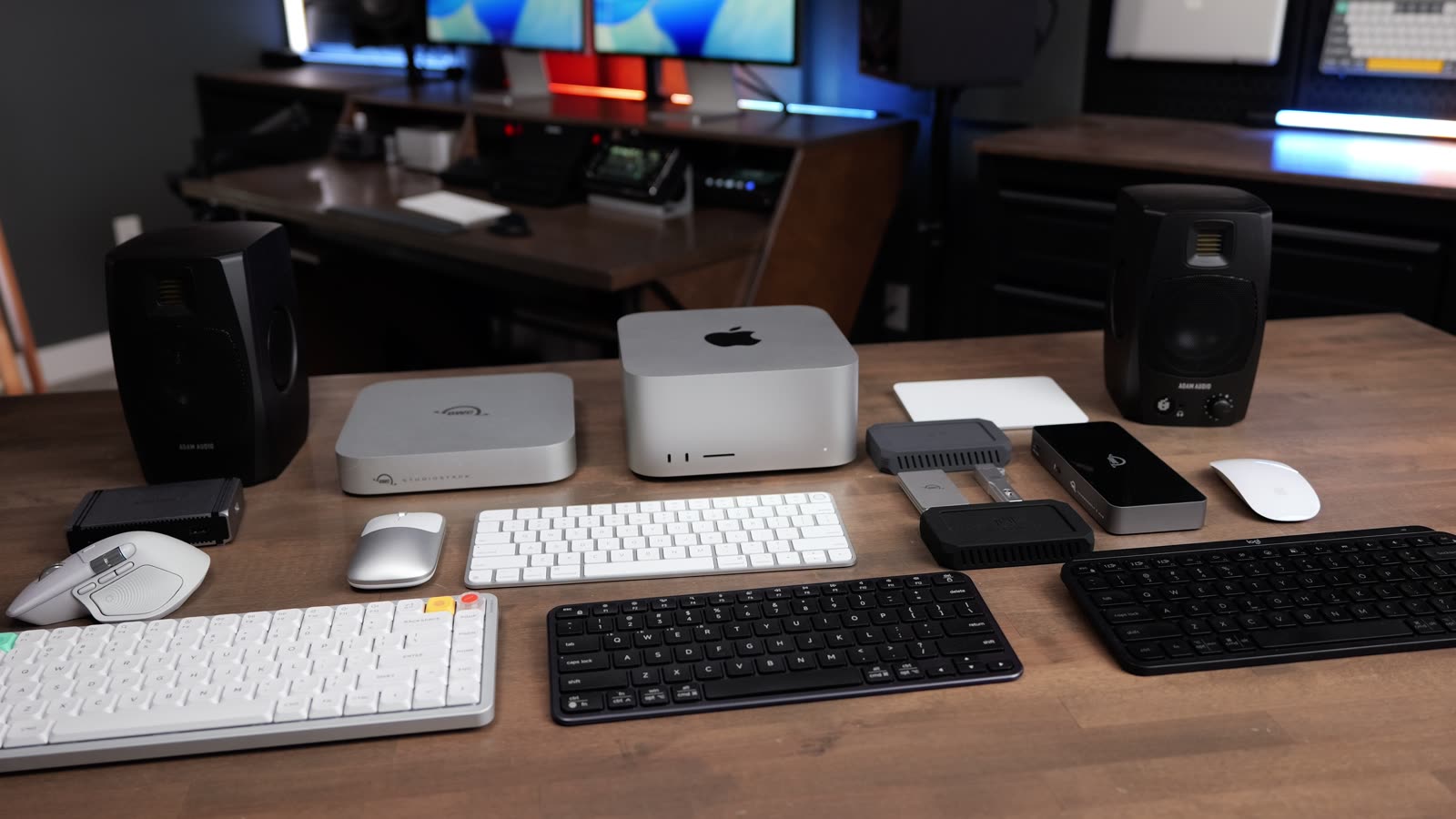
The Apple Magic Keyboard and the Logitech MX Keys Mini are two of the most popular Bluetooth keyboards for Mac computers. They both have real strengths and a few weaknesses, and the right pick depends a lot on how you work. I have used both for a long stretch, I keep switching between them, and I have landed on the Magic Keyboard for reasons I will get into. Here is everything that separates these two so you can decide which one belongs on your desk.
I went back to the Magic Keyboard for the Touch ID button and the globe key, but the MX Keys Mini wins on typing feel, backlighting, and switching between devices.
- Magic Keyboard: Touch ID unlocks your Mac, App Store purchases, and passwords instantly
- Magic Keyboard: layout and function keys perfectly mirror a MacBook, including the globe key
- MX Keys Mini: dedicated buttons to switch between three devices
- MX Keys Mini: backlighting and more tactile key travel with finger divots
- MX Keys Mini: more color options and true cross-platform Windows and Mac labeling
- Magic Keyboard: no easy multi-device switching and no backlighting
- Magic Keyboard: not really made to be reprogrammed
- MX Keys Mini: no globe key and no Touch ID
- MX Keys Mini: pairing buttons steal the F1, F2, and F3 keys
Intro: Who This Is For
This one is for Mac users shopping for a compact Bluetooth keyboard who are torn between Apple’s own board and Logitech’s most popular alternative. If you want your keyboard to feel exactly like your MacBook and you care about fingerprint security, the Magic Keyboard is likely your pick. If you jump between a phone, a tablet, and a computer, or you type for hours and want a more cushioned feel, the MX Keys Mini deserves a hard look. I will walk through pairing, layout, typing feel, Touch ID, software, battery, colors, and price so the decision is clear by the end.
Design and Build

The Magic Keyboard has that sleek, minimal Apple design, and it is now updated with a USB-C port on the back for recharging along with an off and on switch. It is made of aluminum, so it feels a little more durable than the plastic of the MX Keys Mini. The MX Keys Mini sits at a slightly higher angle than the Magic Keyboard, which I preferred, but that raised angle also means it takes up a bit more space when you pack it for travel. Both keep a small footprint, and both use USB-C for charging.
| Magic Keyboard | MX Keys Mini | |
|---|---|---|
| Material | Aluminum | Plastic |
| Angle | Low profile | Slightly elevated |
| Touch ID | Yes | No |
| Globe key | Yes | No |
| Backlighting | No | Yes |
| Multi-device switch | No | Yes, 3 devices |
| Reprogrammable keys | Not really | Yes, via Logi Options Plus |
| Price | About $149 | About $100 |
Pairing and Multi-Device Switching
On the Magic Keyboard you pair to your Mac just by plugging in directly with the USB-C cable. You can also start Bluetooth pairing by flipping the off and on switch a few times. The drawback shows up if you want to use it with an iPad, because you have to unpair it from any other computer it has been connected to first. That is a real hassle if you move it around.
The MX Keys Mini solves this with dedicated device pairing buttons on the top. You can shuffle between different phones, computers, and tablets with a single press. To pair, you press and hold one of those buttons and it flashes to show it is in Bluetooth pairing mode, then you connect from the Bluetooth menu. If you live across multiple devices, this is the single biggest reason to go Logitech. I really miss it whenever I am back on the Magic Keyboard.
The Layout and the Globe Key

The Magic Keyboard layout perfectly matches a modern Mac. It has all the same function buttons on top, and it includes the globe key, which is genuinely useful if you use tiling shortcuts on macOS. The Logitech does not have a globe key, and that is something I have really started to miss. It is one of the main reasons I switched back to the Magic Keyboard.
Both boards use half-size up and down arrow keys, but the Magic Keyboard has full-size left and right arrows. Small detail, but it matters if you edit text a lot.
Typing Feel and Key Travel
Key travel is where these two split. The Magic Keyboard has very short travel that closely mirrors any modern Mac laptop keyboard, so it feels snappy and responsive and matches the muscle memory from a MacBook’s built-in keys. Some people will find it too low profile, especially next to a mechanical keyboard, but it stays very quiet.
The MX Keys Mini has more key travel and, to me, a more comfortable and cushioned feel. It is a little more tactile, and there are small divots in the keys for your fingers, which makes it easier to know you are in home position without looking. Volume on both is about the same, and I would call both of these very quiet keyboards. If you type all day and want the more satisfying feel, the MX Keys Mini gets the edge.
Touch ID: The Magic Keyboard’s Trump Card

The single biggest reason to buy the Magic Keyboard is the Touch ID button on the side. Storing your fingerprint lets you unlock your computer, access saved credit card information, and fill saved passwords with one touch. It is fast and convenient, and it is the reason I switched back. Some people love it so much that they buy the Magic Keyboard just for Touch ID and leave it sitting off to the side next to their MX Keys Mini. The MX Keys Mini has no equivalent, so if fingerprint unlock matters to you, this decision is basically made.
Software and Reprogramming
The Magic Keyboard is not really made to be reprogrammed. You can technically find third-party software to change what some keys do, but it is not the intended use. The MX Keys Mini has its own software called Logi Options Plus, where you can remap any of the function buttons on top.
There is a catch on the Logitech side. You lose F1, F2, and F3 to the device pairing buttons, which is a letdown. I wish Logitech had built pairing into one of the number keys so you could keep the screen brightness controls. You can always reprogram other keys to adjust brightness, but then the printed label will not match what the key actually does. If you want everything to line up perfectly with the standard Mac layout, the Magic Keyboard is the cleaner option.
Backlighting and Battery

The MX Keys Mini has backlighting, which the Magic Keyboard does not. A lot of people say they need it. I personally did not miss it much. The tradeoff is battery: with backlighting left on, you get about 10 days of battery life. Turn the backlighting off and both keyboards last for months on a charge. Both recharge easily over USB-C, so topping up is never a chore.
Colors, Number Pads, and Cross-Platform Use
The Magic Keyboard with Touch ID comes only in silver and white, but if you get the version with a number pad you can also get it in space gray. The MX Keys Mini comes in black, graphite, pale gray, and rose, so there are more ways to match your setup.
On number pads, I do not use one because it puts more distance between the keyboard and the mouse, and I move between them constantly. If you want one, the full-size MX Keys with a numpad is called the MX Keys S, and the Magic Keyboard is also sold in a numeric keypad version.
For cross-platform users, the MX Keys Mini is the better fit. Its keys are labeled for both Windows and Mac, and a simple toggle in Logi Options Plus switches between Windows and Mac mode. The Apple keyboard will work on Windows, but some keys are mislabeled and some functions are limited. If you split time between a Mac and a PC, go Logitech.
Price

The MX Keys Mini typically retails for about $100, or about $130 if you step up to the full-size MX Keys. The Apple Magic Keyboard with Touch ID is about $149, and the full-size version with the numeric keypad runs about $180. You can also get the Magic Keyboard without the Touch ID button for about $100, but I think Touch ID is worth the upgrade and would not buy the version without it.
How to Decide
Buy the Apple Magic Keyboard if you are mainly using one computer, or Mac computers you can easily pair over USB-C, and you want the convenience and security of Touch ID plus a layout that matches your MacBook exactly. Over time you will also come to appreciate the globe key shortcuts.
Buy the Logitech MX Keys Mini if you want backlighting, a better typing feel, and the ability to switch between multiple devices at the press of a button. It is also the pick for cross-platform users.
The Verdict
I have genuinely enjoyed using both of these keyboards, and there are real tradeoffs either way. For me, the Touch ID button is what pulled me back to the Magic Keyboard, and the globe key kept me there once I got hooked on tiling shortcuts. What I miss most is the MX Keys Mini’s multi-device switching and its more tactile, cushioned typing feel. Look hard at the features you cannot live without: if it is fingerprint unlock and a perfect Mac layout, get the Magic Keyboard. If it is device switching, backlighting, and typing comfort, get the MX Keys Mini.