Some of the links in this post are affiliate links, which means I may earn a small commission if you choose to make a purchase at no extra cost to you. As an Amazon Associate, I earn from qualifying purchases. Read my full Ethics & Affiliate Relationship Disclaimer.
We finally got new Mac minis and Mac Studios, and Apple’s desktop lineup is more confusing than it has ever been. The cheap Mac mini has a newer chip than the more expensive one. Every desktop Mac now ships with less storage than its laptop counterpart. Pull up the store page and the prices and chip names do not line up in any order that makes sense.
So I am not going to walk you down the product grid. I am going to give you the three questions that actually decide which Mac you should buy: how to read the chip names, how much memory you really need, and whether the computer lives on a desk or in a bag. Answer those and the right machine falls out at the end. I will also tell you exactly what I would buy.
Question 1: How to Read the Chip Names
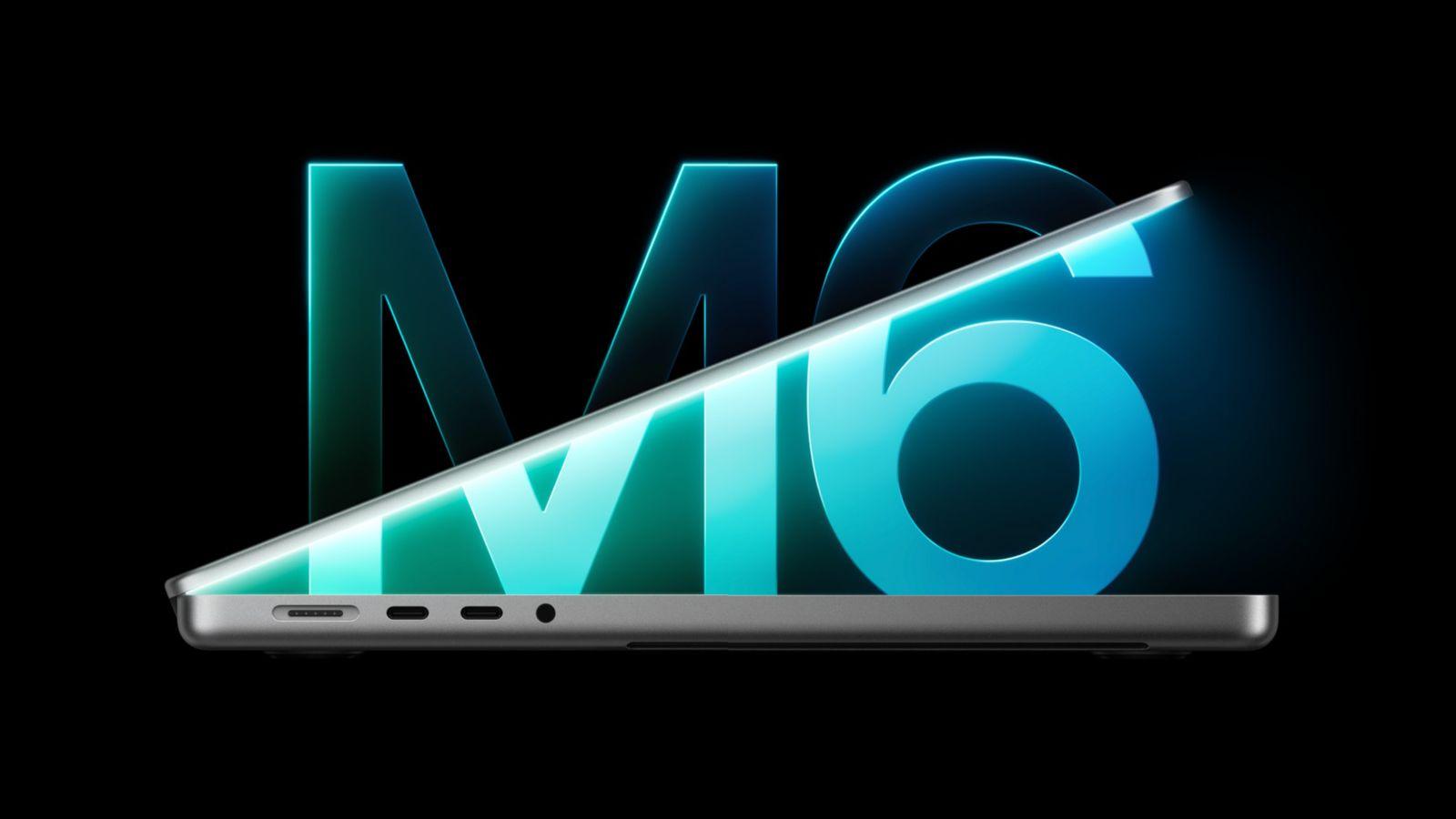
Start with the name on the chip, because that is where most of the confusion comes from. We have had M1, M2, M3, M4, M5, and now there is even an M6. The number is just the generation. After the number there can be a word that tells you the tier: you get a standard M5, or you can move up to M5 Pro, M5 Max, or M5 Ultra. Each step up the tiers roughly doubles something.
Here is the part that trips people up. The newest generation always shows up in the small base chips first. That means a newer number can still lose to an older, higher tier. An M6 base chip does not automatically beat an M5 Pro or an M5 Max. So you cannot just buy the biggest number and assume you are getting the fastest machine.
The question to actually ask is this: does your work use every core at once, or one core at a time? If you are doing a lot of exporting, rendering, compiling code, or multi-cam timelines, you are working across every core, and the Pro, Max, or Ultra tiers earn their money. But web work, writing, and even most photo editing lean on one or two cores running fast. If your work does not spread out, the newest base chip will beat an older Pro chip and save you real money.
Question 2: How Much Memory You Actually Need
The next thing to check is how much you are holding in memory, your RAM. RAM has two parts: capacity and bandwidth. Capacity is the size, and it decides what fits. Bandwidth decides how fast that data moves. Both matter, and both are set the day you buy.
This is the decision you cannot undo. The RAM is soldered in and can never be added later. Storage technically cannot be added inside the Mac either, but there is an escape hatch there: you can always hang an external SSD off it. Memory has no escape hatch, so this is the number to get right up front.
Here is where each Mac starts:
- MacBook Neo: 8GB, less than any other Mac.
- MacBook Air, MacBook Pro, and Mac mini: 16GB.
- M5 Pro (Mac mini or MacBook Pro): 24GB.
- M5 Max: 36GB.
- M5 Ultra: 96GB.
You can upgrade the RAM at order time on every computer except the MacBook Neo. For most people, 16 to 24GB is going to be just fine. I would call 24GB the sweet spot, because it gives you a little extra headroom over 16 and that headroom is what keeps the machine feeling good a few years in. For heavier work, a lot of video editing or similar, especially on a desktop, I really recommend at least 48GB if you can swing it. It is expensive to buy memory from Apple in 2026, but it is the one thing you cannot fix after the fact.
Question 3: Does It Live on a Desk or in a Bag?
The last question is where the computer lives. Not where you use it, but whether you need to carry it around. This matters more than people think, because the same chip behaves very differently in a laptop than it does in a desktop.
A desktop has a real fan and runs off a wall outlet, so it can hold its higher speeds for far longer. A thin MacBook cannot. The thin MacBooks give up on those higher speeds after just a few minutes, then throttle and slow down in a big way. You are paying for performance the laptop can only hold in short bursts.
So if your computer really lives on a desk and you do not need to move it around, buy the desktop. You get better sustained performance, and you save money because there is no screen built in. Take that savings and put it into memory.
The Desktop vs. Laptop Lineup (and Prices)
Now lay the lineup out. On the desktop side you have the Mac mini M6 at $900, the Mac mini M5 Pro at $1,700, the Mac Studio M5 Max at $2,500, and the Mac Studio M5 Ultra at $5,500. On the laptop side the MacBook Neo sort of stands alone, because it uses an A-series processor, starts at $700, and is badly limited with only 256GB of storage and 8GB of RAM. Above that you have the MacBook Air at $1,300, the base MacBook Pro at $2,000, the MacBook Pro M5 Pro at $2,500, and the MacBook Pro M5 Max at $4,100.
The reason the desk-or-bag question matters so much shows up when you line up the same chip in both bodies:
| Chip tier | Desktop | Laptop |
|---|---|---|
| Base M-series | Mac mini M6, $900 | MacBook Air, $1,300 |
| M5 Pro | Mac mini M5 Pro, $1,700 | MacBook Pro M5 Pro, $2,500 |
| M5 Max | Mac Studio M5 Max, $2,500 | MacBook Pro M5 Max, $4,100 |
| M5 Ultra | Mac Studio M5 Ultra, $5,500 | Not offered |
What Most People Should Get
Most people are going to be fine with the MacBook Air or the Mac mini. Both give you great performance for day-to-day tasks, and both vastly outperform their older models. You can still do pretty much any normal task on either one without a second thought.
The $2,000 base MacBook Pro does get you an upgraded display over the Air and one fan, but it still runs into thermal issues compared to something like the M5 Pro Mac mini. If you want to put a few upgrades into a Mac without going all the way into Mac Studio territory, the M5 Pro Mac mini is the move. I do not expect it to perform that much better than the M6 Mac mini in raw terms, but you get nicer things out of the box: Thunderbolt 5, 24GB of memory, and a 512GB SSD to start.
So the simple version: get the M6 Mac mini if you want the cheapest good desktop, step up to the M5 Pro Mac mini if you want a little more headroom and faster ports.
If you’re deciding between Mac minis, I tested the M6 vs the M5 Pro and the M6 vs the M4.
Why the M5 Max Mac Studio Is the Real Bargain
If you do the kind of work that actually uses every core, the M5 Max Mac Studio is the best bargain in Apple’s lineup right now at $2,500. You can add external storage to it very easily, it has the fast Thunderbolt 5 ports, and the equivalent chip in a laptop, the MacBook Pro M5 Max, costs $4,100. That is about $1,600 of savings for the same silicon. Put that toward a nice display and a better desktop setup instead of paying for a screen you bolt shut on a desk anyway.
To lean into that external-storage point, a Thunderbolt SSD and a dock are the two accessories I would pair with any Studio. They are how you get around Apple’s expensive internal storage without giving anything up in speed.
Wondering if you need the Studio at all? Here’s the M5 Max Mac Studio vs the M5 Pro Mac mini.
Three Ways People Still Waste Money
Even with the right chip picked, I see the same three mistakes over and over.
1. Buying the 256GB storage model. Unfortunately the M6 Mac mini starts at 256GB, and that computer is not going to last you five years. You will not be able to hold enough applications and system data, and your email and iMessage attachments fill it up fast. Do not buy the 256GB machine. A 512GB will last much longer.
2. Buying by the tier name. People buy a MacBook Pro because it says Pro, or they grab the Pro or Max chip without needing it. Most people do not need a Max chip in a laptop. And if you genuinely do need a Max or an Ultra, you are much better off in a desktop than a laptop, where it can actually hold those speeds.
3. Underbuying on memory. Do not get the 8GB MacBook Neo unless you absolutely have to have the cheapest option possible. It will not last, and you will end up buying a newer computer sooner, which costs you more in the end. 16GB is probably fine, but spending a little more for 24GB, even though it hurts at the factory, means the computer lasts longer and you get more use out of it.
Here's What to Buy
Run the three questions and it comes out clean. If your work does not hammer every core, skip the tier names and buy the newest base chip. If you do not carry the machine, buy the desktop and put the screen money into RAM. And whatever you pick, start at 512GB of storage and at least 24GB of memory.
For most people, that means the M6 Mac mini, upgraded past the 256GB base, or the MacBook Air if you need it to travel. If you want more headroom without jumping to a Studio, the M5 Pro Mac mini is the smart middle. And if you actually push every core, the M5 Max Mac Studio at $2,500 is the one I would buy, because it does the work of a $4,100 laptop and leaves you money for a real display. Still stuck? I keep a free form on the site where I will help you pick the right one for what you actually do.