Some of the links in this post are affiliate links, which means I may earn a small commission if you choose to make a purchase at no extra cost to you. As an Amazon Associate, I earn from qualifying purchases. Read my full Ethics & Affiliate Relationship Disclaimer.
When Apple released the M4 Pro Mac Mini, I was impressed by how much power they packed into such a tiny machine. The computer I was more excited about was the M4 Max Mac Studio. I have now spent a lot of time with both of them, doing real work and running tests, and the gap between them is not always where you would expect. This is the full comparison of the hardware, the specs, the ports, and the real world performance so you can decide which one is right for you.
The M4 Max Mac Studio wins where it counts for pros, but the M4 Pro Mac Mini comes surprisingly close for a lot less money.
- Tiny, quiet, and fits in a backpack
- Comes surprisingly close for a lot less money
- Lightroom exports showed no benefit from the Max chip
- Double the video encoders and decoders
- Far more ports and better thermals
- 10Gb Ethernet built in, a paid upgrade on the mini
Who this is for
This comparison is for anyone trying to decide between the M4 Pro Mac Mini and the M4 Max Mac Studio for a desktop Mac. If you do web browsing, productivity, coding, or even regular video editing, you are the kind of buyer who could be happy with either one, and the question is whether the Studio is worth the extra cash. If you are a video professional exporting long timelines all day, this is also for you, because that is the one area where the Max chip pulls away in a real way. I ran both machines side by side for a long stretch, and I will give you every number I recorded so you can decide based on your own workload, not marketing.
Design and ports

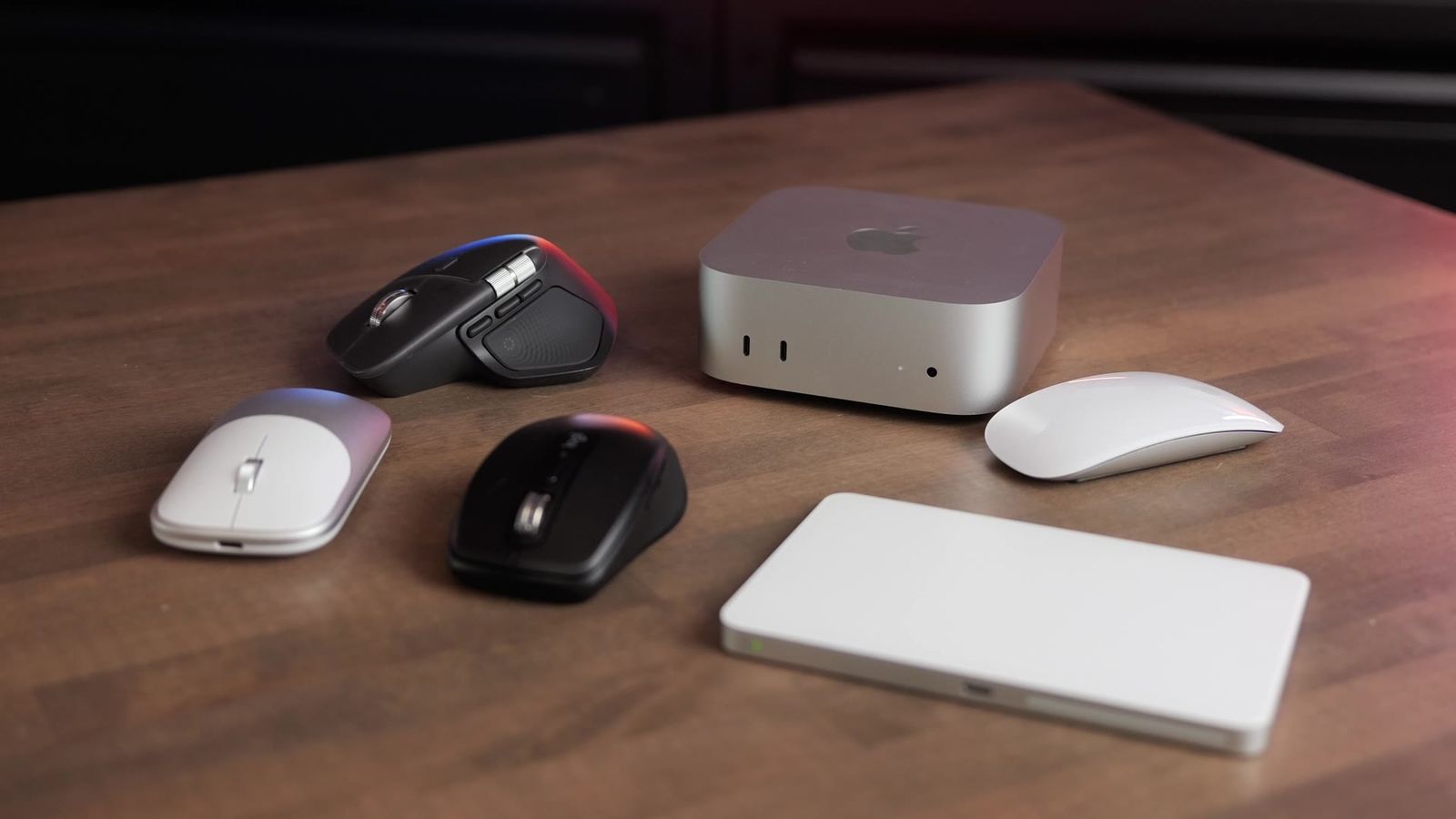
The first and biggest difference is size. The M4 Pro Mac Mini is so compact and lightweight that you could easily drop it in a backpack or a suitcase. The M4 Max Mac Studio feels pretty big next to it, though it is still a lot smaller than any traditional desktop tower.
On the front of the Mac Studio you get two 10 gigabit per second USB-C ports and a UHS-II SD card slot, which is very handy if you shoot with cameras a lot. The Mac Mini has two USB-C ports on the front plus the headphone jack. Having the headphone jack up front is convenient, though it is more annoying if you want it hidden on the back for docking.
The back is where the real gap shows up. The Mac Studio has four Thunderbolt ports, an HDMI port, a 10 gigabit per second Ethernet port, and a couple of USB-A ports. You can run it without any dock at all. The Mac Mini gives you an HDMI port, three Thunderbolt 5 ports, and a network port you can upgrade to 10 gigabit per second, but that upgrade costs extra. The Thunderbolt 5 ports are a nice reason to step up to the M4 Pro over the standard M4 Mac Mini.
Cooling is different too. The Mac Mini uses a single fan with more of a heatsink style design. The Mac Studio has dual fans and does a better job at intake and outtake, so it will hold up better under heavier workloads over a long session.
The chips
You can get the M4 Max in either the lower end binned version or the higher end non-binned version. Memory bandwidth is a major separator between the two machines. The Mac Studio runs at 573 gigabytes per second, while the Mac Mini comes in at 273 gigabytes per second. That means the CPU can talk to the RAM faster on the Studio, so it uses memory more effectively. The M4 Max also has more GPU and CPU cores than the M4 Pro, which pays off under more extreme conditions.
The single most important spec for video people is the media engine. The M4 Max has double the video encoders and double the video decoders of the M4 Pro. In software like Final Cut Pro, that translates to export speeds that are roughly double on the Mac Studio. For reference, the M4 Pro Mac Mini is only a little faster than the standard M4 Mac Mini at exporting video, so if you want the absolute fastest export times you need the M4 Max, or even the M3 Ultra chip in a Mac Studio.
Everyday use

For day to day use, both machines felt really snappy and responsive. I did not notice one feeling clearly better than the other for web browsing or productivity. Even editing in Final Cut Pro, both did well. I will give the edge to the Mac Studio because it loaded a little faster the moment I clicked play or skimmed the timeline, but if I was using them blind I probably would not have noticed. If I only had the Mac Mini, I would have been totally content with its performance.
Benchmarks
Geekbench 6
Here are the numbers I recorded. On Geekbench 6 single core, the M4 Pro hit 3,856 and the M4 Max hit 4,075, so barely any difference for day to day tasks. Where the Studio pulls away is multi-core, 20,692 vs 26,667, and especially the GPU score, where it lands almost double: 60,895 vs 119,612 in the OpenCL test. The GPU and the memory bandwidth are the real reasons to pick the M4 Max over the M4 Pro.
SSD, Xcode, and Blender
On the SSD test, the M4 Pro chip did 4,000 megabytes per second. The M4 Max, running a 2 terabyte drive, hit 6,700 megabytes per second read and 5,400 megabytes per second write. In Xcode I expected a bigger gap in compile time. The Mac Studio built the project in 1:37 and the M4 Pro took 2:16.
Blender told a clearer story. Rendering the classroom scene on the CPU took 4 minutes and 15 seconds on the M4 Pro and 2 minutes and 55 seconds on the M4 Max Mac Studio. Faster on the Studio, but not a crazy difference to me.
| Test | M4 Pro Mac Mini | M4 Max Mac Studio |
|---|---|---|
| Geekbench 6 single core | 3,856 | 4,075 |
| Memory bandwidth | 273 GB/s | 573 GB/s |
| SSD read | 4,000 MB/s | 6,700 MB/s |
| SSD write | 4,000 MB/s | 5,400 MB/s |
| Blender classroom render (CPU) | 4:15 | 2:55 |
| Final Cut 3-min export | 1:34 | 0:52 |
| Logic Pro MIDI channels | 247 | 381 |
| RAM as tested | 24 GB | 64 GB |
Logic Pro
Logic Pro was interesting. Running a MIDI instrument with four effects on it, I was able to run 381 channels on the M4 Max Mac Studio and 247 channels on the M4 Pro. I then enabled 600 instances of that instrument and ran an offline bounce. It took 2 minutes and 23 seconds on the M4 Pro and a minute and a half on the Mac Studio. A 64 track bounce took 11 seconds on the Studio and 16 seconds on the Mac Mini. Not a big difference for actual day to day use, but if you lean on a lot of plugins you would appreciate the extra headroom of the M4 Max.
Final Cut Pro export
This is the test I care about most. I built a three minute Final Cut project with a couple of 6K cameras, color adjustment layers, titles, other effects, and audio plugins. On the Mac Studio it took 52 seconds to export. On the M4 Pro it took 1 minute and 34 seconds. That gap comes straight from the doubled video encoders and decoders. On a three minute video it is a nice bonus. On 10, 20, or 30 minute videos, that difference compounds into real time savings, and that is where the Mac Studio earns its price for editors.
Blackmagic RAW
The Blackmagic RAW speed test tells the same story for anyone working with raw video. It measures how many frames per second each machine can decode. On the GPU, the Mac Studio hit 1,507 fps on the 4K test vs 674 on the Mac mini, and 372 vs 165 on the full-resolution test. That is more than double, and it lines up with the extra GPU cores and media engines in the M4 Max.
Lightroom Classic

The most surprising test was my Lightroom export. I exported 500 images from raw to JPEG, and on the M4 Max Mac Studio it actually took longer than on the M4 Pro, 1:20 vs 1:14. I ran it a couple of times to be sure, and the result held. If your workload is just exporting in Lightroom Classic, the M4 Pro and the M4 Max will give you very similar performance, and the Max chip buys you nothing there.
Price and value
Here is the part that makes the decision hard. The Mac Studio adds up fast once you start upgrading the storage and the RAM. I was running a 64GB Mac Studio against a 24GB M4 Pro, and the M4 Pro held up well even against the Max. When you frame it as a $1,400 machine versus a $2,000 machine, and remember that my Studio was not even the base model, the M4 Pro coming this close is impressive. The Mac Mini is also easy to upgrade on RAM and SSD if you want a bit more headroom without jumping to the Studio.
Which one should you buy?

You really cannot go wrong with either one, so it comes down to your workload. Get the M4 Max Mac Studio if you plan to keep it a long time, if your time is money, and if you are doing a lot of exporting and rendering across different types of projects, because those time savings compound. The clearest case for the Studio is video professionals doing a ton of exporting, thanks to the doubled video encoders and decoders that make Final Cut exports much faster.
Otherwise, I will admit I was wrong in some past videos: the M4 Pro gets you very close for a lot less. If you are on a budget and would rather put the savings toward a Studio Display or a better keyboard and mouse, the M4 Pro Mac Mini is really hard to beat. Look back at the tests that match your own work and decide whether the time savings are worth the extra cash for you.