Some of the links in this post are affiliate links, which means I may earn a small commission if you choose to make a purchase at no extra cost to you. As an Amazon Associate, I earn from qualifying purchases. Read my full Ethics & Affiliate Relationship Disclaimer.
It is 2026 and Apple still ships Macs that start at 256GB of storage. That is not enough for most people, and it fills up faster than you would expect once system data, apps, and a photo library pile on.
This is my guide to picking the right internal SSD size on a Mac, and the point where paying Apple for more built-in storage stops making sense and an external SSD becomes the smarter buy. I will walk through every tier from 256GB to 2TB, what each size is actually good for, and what the upgrades cost.
Buy 512GB at a minimum, step up to 1TB if you can afford it, and once you are looking at a 2TB internal drive, put that money toward a fast external SSD instead.
- You want to work off the built-in drive every day without a drive hanging off the Mac
- 512GB covers your apps, local photos, and documents
- 1TB holds a full photo library plus Lightroom and Logic projects with room to spare
- You are eyeing a 2TB or 4TB internal upgrade, since a 4TB external costs far less
- You work with large video files or archive finished projects you rarely reopen
- You want real backups and better file management instead of trusting one machine
- Check where your storage is actually going
- System data, explained
- What 256GB actually leaves you
- You cannot upgrade the SSD later
- 256GB: web, email, and cloud storage
- 512GB: the real minimum in 2026
- 1TB: the sweet spot
- 2TB and what the upgrades cost
- Go external instead of paying for 2TB
- Why I would stop at 1TB
Check where your storage is actually going
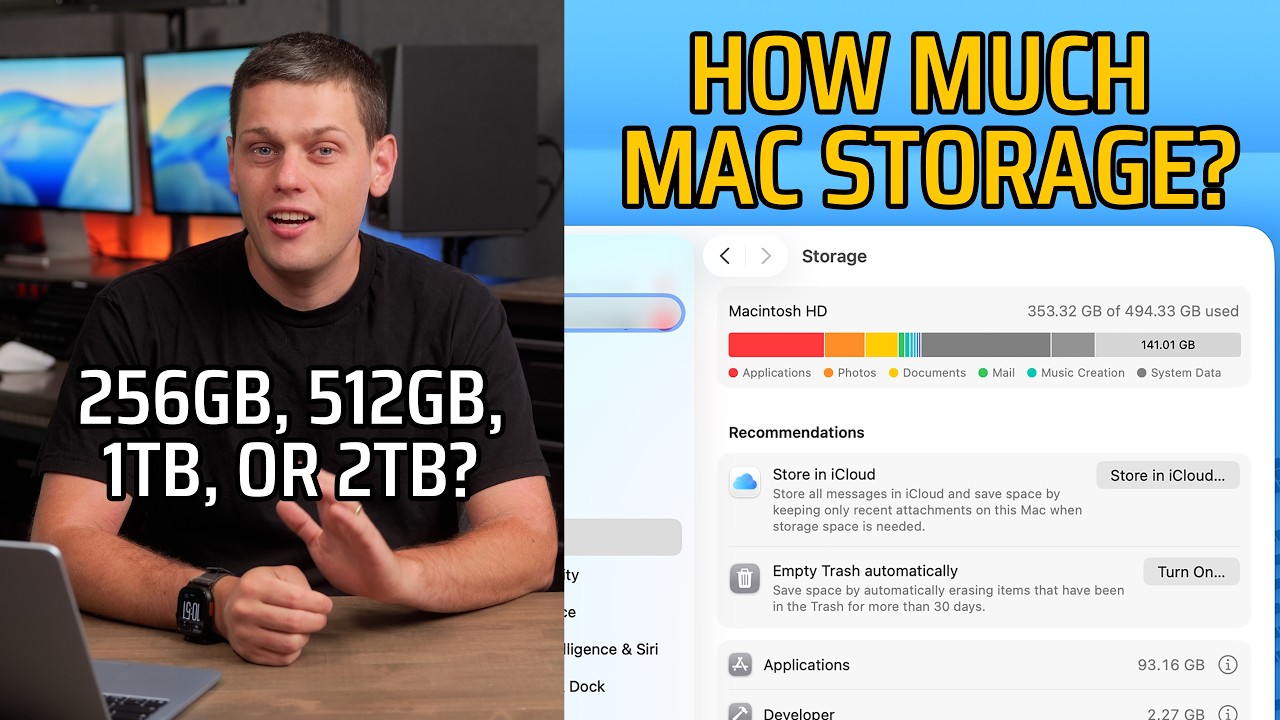
Before you decide how much to buy, look at how much you use now. Hit Command and the space bar, type storage, and open it. Give it a few seconds to add up every file in use.
On my Mac the big buckets are applications, my photo library, and documents, with mail, music creation, TV shows, and messages filling in behind them. Documents shows 32GB, but that number is inflated by video projects I keep on the machine. If you are doing word processing and basic productivity, your documents folder will be nowhere near that. Applications runs high for me too, around 96GB, because a lot of modern apps ship with piles of extra plug-ins and support files. Yours will be smaller.
The two categories that quietly eat the most space are system data and macOS itself, and macOS 27 is the largest version yet.

System data, explained
System data is confusing because it is not one thing. It is a catch-all bucket for everything macOS cannot file under a tidy icon. On my Mac it is sitting at 123GB.
The good news is macOS is smart enough to clear out files it does not need once the drive starts filling up, and some of what lives in there is just files Apple expects you to want later. So if you see a huge system data number and you still have a healthy amount of free space, that is macOS doing exactly what it should.
Most of it is cache. Almost every app you run keeps one, from Safari and Chrome to Spotify and Slack, and the Adobe apps are notorious for large caches. System data also grows when your Mac runs out of RAM and starts writing to the SSD as swap. If it balloons, rebooting a couple of times is the simple way to clear some of it out.
What 256GB actually leaves you
Here is why system data matters when you are choosing a size. It is a permanent tax on the drive, and it scales with how hard you use the machine. A fresh Mac might only show 20 to 30GB of it. A machine that has run for two years under heavy use is commonly past 100GB.
Do the math on a 256GB Mac. macOS takes about 27GB. Add system data anywhere from 40 to 100GB and you are already down to roughly 190GB of usable space before you install a single app, add a photo, or let mail and iMessage start filling in. That is why a 256GB machine usually feels full within about a year.

You cannot upgrade the SSD later
Getting the size right up front matters because you cannot fix it later. The SSDs in Mac laptops are soldered to the board, so there is no opening it up and swapping in a bigger drive. If you fill it, your only real move is to sell the Mac and buy one with more storage.
You can hang an external SSD off the machine to add space, and for large projects that is close to a necessity. Even so, I like the built-in drive to be big enough that I can do most of my daily work on it, so I am not tethered to an external drive every single day.
Low free space causes its own problems. On a 256GB Mac especially, once you drop under 10% free, macOS starts struggling to find swap room for RAM. Try to download something and it can lock the machine up because there is nowhere to put the file, and then you are hunting for things to delete. A 512GB drive gives you enough headroom that you are not fighting that.
256GB: web, email, and cloud storage
The 256GB model only exists now on the Mac mini and the MacBook Neo. Think of it as a web and email machine: Safari, mail, messages, and maybe a couple of small apps, with most of your files living in iCloud or Google Drive.
It is the right pick for a student who mostly writes papers, or a parent who checks email and keeps their photos on their phone. It works. It is just tight, and it falls apart the moment you start keeping a lot of files locally, especially photos. If a base Mac mini is the plan, know what you are signing up for.

512GB: the real minimum in 2026
512GB is where I think Apple should start every Mac in 2026, and personally I would not buy one with less. It gives you room to keep your apps, store your photos locally, hold some downloaded media, and keep years of PDFs and other documents without thinking about it much. You will still manage files occasionally, but you will not be miserable trying to stay under the old 256GB line.
Content creators and people working with large video files can live on 512GB too, as long as they are willing to run an external SSD alongside it. The MacBook Neo and the M5 MacBook Air both start to make sense at this size.

1TB: the sweet spot
1TB is the sweet spot. It hands most people more headroom than they will use, and if you are a videographer or photographer, it is usually enough to work on your projects without an external drive attached. You can keep a full Lightroom catalog and edit off it, run Logic projects, and even park a couple of virtual machines on it. Most people can store their entire photo library on 1TB and still have room to spare, so you never think twice before downloading something. That freedom is worth paying for.
2TB and what the upgrades cost
I bought the 2TB drive in my Mac Studio. It is handy, but I would not recommend it for most people. The Studio lives on my desk and I still end up running plenty of external drives with it anyway. The 2TB is nice for keeping several projects going at once, but I would be perfectly fine on 1TB. As it is, I usually have somewhere between 500GB and 1TB free.
The upgrades add up fast. On the Mac Studio the base 512GB is included. 1TB is $300 more, 2TB is $800 more, and a 4TB SSD currently runs $1,800 and up. Here is how the tiers line up:
| SSD size | Mac Studio upgrade | Best for |
|---|---|---|
| 256GB | Not offered | Web, email, papers, files kept in the cloud |
| 512GB | Included (base) | The real minimum: apps, local photos, documents |
| 1TB | +$300 | The sweet spot: full photo library, Lightroom and Logic projects |
| 2TB | +$800 | Only if you keep several big projects local, though most should go external |
| 4TB | +$1,800 | Skip it and buy a 4TB external instead |

Go external instead of paying for 2TB
If you are the kind of person who keeps filling a 1TB built-in drive, you are going to need a large external SSD anyway. External drives have gotten pricey, but they are still cheaper than the equivalent built-in upgrade. So once you are looking at going over 1TB, take the $500 to $800 you would have handed Apple and put it toward a good 4TB external instead. There are plenty of fast options that run almost as quick as the built-in Mac SSD.
For most Macs a Thunderbolt 4 SSD is all you need, and the right cables matter if you want to actually hit full speed. If your Mac supports it, the Thunderbolt 5 drive below is my current favorite.
Why I would stop at 1TB
There is another reason to cap it at 1TB. Once you go past that, you really need to think about backups and how your files are organized, and a 2TB built-in drive quietly gives you permission to be sloppy about both. You end up trusting one laptop or desktop with everything, and that is dicey.
In my experience the people who lose files are the ones with the biggest internal drives, trusting a single machine with all of it and never touching an external drive. The moment you start using an external, you start practicing better file management. Finished projects and files you have already used are a waste of that premium built-in space too. They sit untouched, so you are paying Apple for instant access to files you are not actually accessing.

My recommendation
For most people I would buy the 512GB SSD. If you can afford it, 1TB is a nice luxury that lets you keep more on the machine and back projects up later. If you are staring at a 2TB internal upgrade, skip it and put that money into one of my favorite external SSDs instead, because if you can fill 2TB once you will do it again and again.
Still not sure which Mac fits you? I give free, personalized Mac buying advice at adamtalks.tech/mac. Tell me what you do and I will tell you exactly what to get.