Some of the links in this post are affiliate links, which means I may earn a small commission if you choose to make a purchase at no extra cost to you. As an Amazon Associate, I earn from qualifying purchases. Read my full Ethics & Affiliate Relationship Disclaimer.
Open Activity Monitor on any Mac and the RAM looks full. It does not matter if you have 16GB or 64GB, it fills up. That is not a bug, and once you understand why, you can tell exactly how much RAM you actually need instead of guessing.
This matters because RAM is the one spec you can never change after you buy: it is soldered in for the life of the machine. Here is how to check what your Mac is really doing, step by step, and how to read the one graph that tells you the truth.
First, why your RAM always looks full
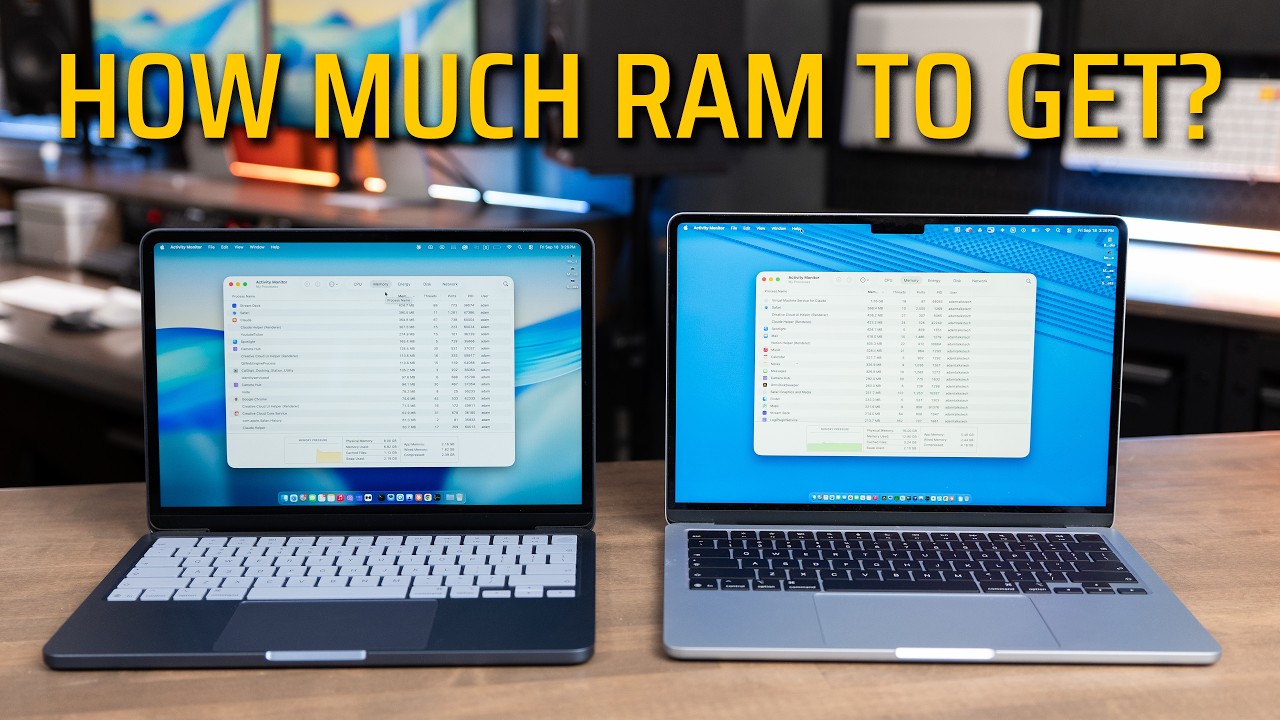
macOS is intelligent enough to use all the RAM it has. Spare memory gets filled with copies of files and apps you might open again soon, because RAM is far faster than your SSD. So a nearly full memory readout is the system working as intended, not a warning. On my 16GB M5 MacBook Air it sits around 13GB used with a few more in cache, and my 64GB Mac Studio fills up too once I have a dozen apps open.
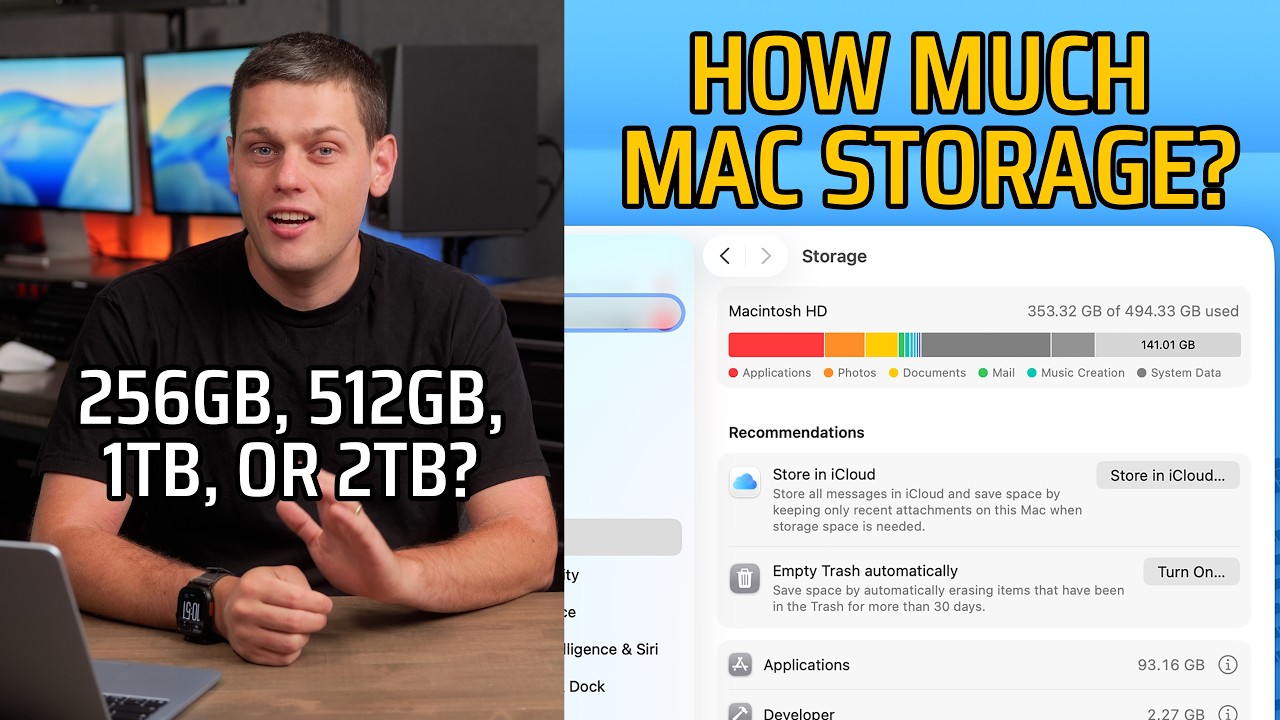
Quick clarification, since people mix these up: RAM is not storage. Storage is how much stuff you can keep on the Mac. RAM is how many tasks and processes can run at the same time.

How to open Activity Monitor
Here are the steps:
- Press Command + Spacebar and type Activity Monitor, then press Return.
- Click the Memory tab along the top.
- Click the Memory column header to sort, so the processes using the most RAM rise to the top.
That view is where everything below lives.

What every number actually means
Once the Memory tab is open, here is how to read it:
| Reading | What it means |
|---|---|
| Physical Memory | How much RAM is actually installed. |
| Memory Used | The current total the Mac is using across everything. |
| App Memory | What your open applications are using. |
| Wired Memory | Data that must stay in RAM and cannot be compressed or moved to the SSD. |
| Compressed | macOS squeezing less-used data smaller to save RAM, expanded again when needed. |
| Cached Files | Files parked in spare RAM so they open faster. A sign you have room. |
| Swap Used | Data pushed out to the slower SSD because RAM ran short. A sign you are squeezed. |

Cache vs swap, the part people get backwards
Cache is your Mac being generous with spare room, pulling in files to make them faster. Swap is your Mac feeling squeezed and offloading to the SSD. Lots of cache means you have headroom. Lots of swap means you ran out. A little swap is totally normal. Sustained swap, where the same data keeps getting pushed to the SSD and dragged back all day, is what too little memory feels like for as long as you own the machine.
Read the Memory Pressure graph
The single most useful indicator is the Memory Pressure graph at the bottom:
- Green is totally fine.
- Yellow means it is compressing more than ideal. Occasional yellow is just macOS doing its job. Constant yellow means you are compressing all day.
- Red means it is leaning hard on swap. If you live in the red, you have been running a slow machine and maybe did not realize it.

The real test: watch it for a day
Numbers at one moment do not tell you much. Do this instead: work a normal day with Activity Monitor open in a corner, or on a second monitor, and watch Memory Pressure and Swap Used as the day goes on.
- Mostly green, swap only a gig or two: your current RAM is fine. Buy the same amount next time and put the money toward a better chip, or save it.
- Regularly yellow, swap in multiple gigs: you are short. Stepping up one tier would help. This is exactly where I wish my 16GB Air had been 24GB.
- Regularly red: you have been living with a slow computer. Buy more next time.

Remember: your Mac is busy even when you are not
One reason to lean higher: the Mac is working even when you are not looking. Spotlight indexing, Photos scanning faces, iCloud syncing, backups, Apple Intelligence, and menu-bar apps you forgot you installed all use RAM without showing up in the Dock. On my Mac Studio, everything except Final Cut still adds up to about 8GB, almost a whole MacBook Air’s worth, just on background tasks. So 16GB is really 16GB minus whatever your system decides to do that day. That headroom is the argument for 24GB even when 16GB sounds like enough.

The bottom line
Full memory is normal. Green pressure is great, yellow is fine, and a little swap is expected. The thing to watch is sustained swap and constant yellow or red pressure over a real working day. If that is you, buy up a tier next time, because the RAM is soldered in and cannot be changed later. If you are still not sure how much to get, I keep a full breakdown in the companion guide, and you can get free personalized advice at adamtalks.tech/mac.