Some of the links in this post are affiliate links, which means I may earn a small commission if you choose to make a purchase at no extra cost to you. As an Amazon Associate, I earn from qualifying purchases. Read my full Ethics & Affiliate Relationship Disclaimer.
Anker put a screen on a USB-C hub. I’ve been testing the Anker Smart Display Hub with my 13-inch M5 MacBook Air and my M6 Mac mini. It’s a mix between a small hub and a docking station: it passes power through to your computer, gives you the ports you need, and sits on a little magnetic base on your desk.
Anker sent me this one for free. They had no input on this review, and everything here is my own take. Below I’ll go through the ports, the screen, the app, the size, how it handles monitors on a Mac, charging, and who I think should buy it.

A great hub if you want one that lives on your desk, and the screen is fun to have. Skip it if you need a hub for travel or two extended monitors on a MacBook, and plan on bringing your own charger.
- The screen shows what’s connected, the power going through it, and your monitor’s resolution and refresh rate
- Strong magnetic base with an adhesive pad, so it can live on your desk and still come off
- Passes up to 80W to your laptop, and my MacBook Air pulled 60W through it
- Most of the ports are on the back, and it worked fine on my Macs, including waking from sleep with a USB keyboard
- On a Mac, plugging in two monitors mirrors the same thing on both
- The USB-C cable is built in, so it’s not great for travel
- No charger in the box
- Only one USB-C data port, and it’s on the front
Ports
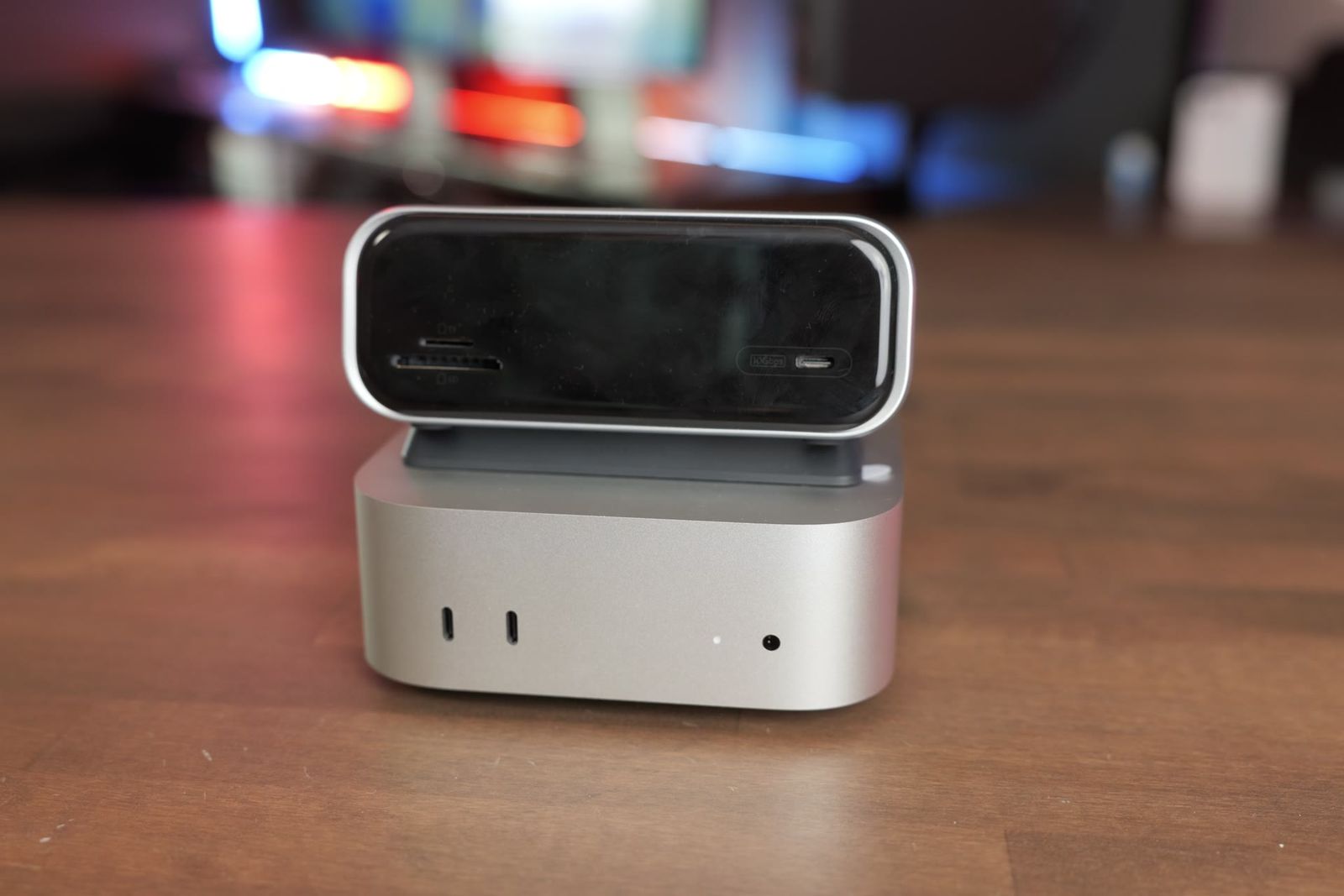
On the front you get an SD card slot, a microSD slot, and a 10 gig USB-C port. On the back there’s a built-in 2.3-foot USB-C cable that plugs into your computer or your iPad. It also works with an iPhone.

Also on the back is the power delivery pass-through port, which powers the hub and everything plugged into it. You get two 5 gig USB-A ports, one 10 gig USB-A port, HDMI and DisplayPort that go up to 4K, and an Ethernet port. That’s the bare bones, and I wish it had one more USB-C port on the back.
| Port | Where |
|---|---|
| SD and microSD card slots | Front |
| 10 gig USB-C (data) | Front |
| Built-in 2.3-foot USB-C cable to your computer | Back |
| USB-C power delivery input, up to 100W | Back |
| Two 5 gig USB-A, one 10 gig USB-A | Back |
| HDMI and DisplayPort | Back |
| Ethernet | Back |

I like that Anker put most of the ports on the back to keep it clean looking. I was a little disappointed that the USB cable is built in. A detachable cable would make it more portable. The one it has is reinforced, braided, and feels high quality, but they lose some points for that.
If you want help picking a Mac that works with the setup you have in mind, I offer free personalized Mac buying recommendations.
Power pass-through
It can take up to 100 watts in and pass it through to your other devices, and that same power runs the hub. You don’t have to plug in power, though. It can run bus powered off your computer. When I had it on the MacBook Neo it was drawing about one watt from the laptop, and it worked fine that way.
The screen
Anker loves putting screens on things lately, whether it’s a charger, a power bank, or now a hub. When you power this one on it starts with a screensaver. Once you plug things in, it shows the device it’s connected to, how much power is going to that device, and how much the hub itself is drawing.

If you’re using the HDMI or DisplayPort out, it also shows your monitor’s refresh rate. Through Anker’s app you can run a photo slideshow on it, and there’s a 25-minute focus timer you start by pressing the button twice. A little guy does a dance on the screen when the timer ends, which is kind of cute.
The Dock Manager app
There’s a Mac app called Dock Manager. It lets you customize the hub, update the firmware, and see what each port is doing.

Magnetic base and size
The magnetic base is one of my favorite things about it. The magnet is very strong, and there’s an adhesive pad on the bottom of the base so you can stick it to your desk for good. You can still pull the hub off and take it wherever you want, then snap it back on.
When I got it out of the box I was surprised by the size. It’s bigger than I expected, about 5.1 x 2 x 2.2 inches according to Anker, and on a desk it’s closer to a docking station than one of those slim portable hubs. It’s really designed for someone who wants a hub for their desk setup. It’s not as great for travel because that USB-C cable doesn’t come out.

A docking station usually comes with a power brick, and Anker doesn’t include one with this. You’ll have to bring your own USB-C charger.
Monitors on a Mac
Anker lists dual 4K at 60Hz, or one display at 4K 144Hz or 1440p 240Hz. The compatibility gets confusing, and Anker has a chart for it. If you’re on a Mac and you plug in both display outputs, it puts the same thing on both screens. That’s a big letdown, because most people adding extra displays don’t want to mirror the same thing on two of them. Depending on how you want to use it, it could be a deal breaker. On Windows, Anker says you do get two extended displays.

HDMI and DisplayPort both worked great with my LG 4K monitor. As soon as I plugged in two monitors, one 4K and one 1080p, both of them ran at 1080p, partly because of that mirroring.
If you have a Mac mini there’s an easy fix. Run one monitor from the hub and plug the second one straight into the Mac mini, and you get two extended screens. You just can’t run two separate screens out of the hub itself. So this is a great pick if you’re expanding your setup without dual monitors, and a limitation if you want two screens on one cable.
Charging
Plug a charger into the power port and the hub passes up to 80 watts to your laptop. It says it can take up to 100 watts in, and if your charger can do more than 100 watts, it only takes 100. My guess is the extra goes to the other devices plugged into the back.
With my M5 MacBook Air, the screen showed up to 60 watts going to the Air, which is what it’s supposed to take. My M5 iPad Pro pulled 48 watts and up to 50.
I didn’t have any other issues running it with my Macs. I ran a USB keyboard through the hub, and it still woke my Mac from sleep just fine.
What I’d change and price
The main thing I’d change is adding one more USB-C port, probably on the back. Right now the only USB-C port for data is on the front.
At $100, this is pretty high for a hub like this that doesn’t include a power brick. To me it feels closer to a $70 hub, especially since you have to bring your own charger. I’ve already seen it on sale for as low as $80, and I think that’s the price to pick it up at. The display is cool, I like the software and the focus timer, and the USB ports are what you’re buying a hub for anyway.
Should you buy it?
| Buy it if | Skip it if |
|---|---|
| You want a hub that lives on your desk | You need a hub for travel |
| You already have a USB-C charger lying around | You want two extended monitors on a MacBook |
| You have a Mac mini and can run a second monitor straight from it | You need more than one USB-C data port |
The bottom line
The Anker Smart Display Hub is great if you want a hub that lives on your desk and you already have a power adapter around. I’d skip it if you need one for travel, since the cable doesn’t come off and it’s on the large side, or if you want two extended monitors on a MacBook.
If you’re figuring out which Mac runs the monitor setup you want, get a free recommendation from me, and every Mac I’ve tested is on my Mac test results page.
Still deciding? If you need more ports or real dual-monitor support, see the Thunderbolt 5 docks I’d buy, and for the rest of a desk setup, here are the Mac mini accessories I’d pick.